<?xml version="1.0" encoding="utf-8"?><feed xmlns="http://www.w3.org/2005/Atom" xml:lang="da"><generator uri="https://jekyllrb.com/" version="3.10.0">Jekyll</generator><link href="https://andersx.dk/feed.xml" rel="self" type="application/atom+xml" /><link href="https://andersx.dk/" rel="alternate" type="text/html" hreflang="da" /><updated>2026-04-19T14:04:36+00:00</updated><id>https://andersx.dk/feed.xml</id><title type="html">Anders’ Tech Blog</title><subtitle>En blog om teknologi og air pollution</subtitle><author><name>skrevet af andersx</name></author><entry xml:lang="en"><title type="html">cuRFP: Same speed, half the memory - outscaling cuSOLVER with Rectangular Full Packed format on NVIDIA GPUs</title><link href="https://andersx.dk/2026/04/18/curfp-basics.html" rel="alternate" type="text/html" title="cuRFP: Same speed, half the memory - outscaling cuSOLVER with Rectangular Full Packed format on NVIDIA GPUs" /><published>2026-04-18T00:00:00+00:00</published><updated>2026-04-18T00:00:00+00:00</updated><id>https://andersx.dk/2026/04/18/curfp-basics</id><content type="html" xml:base="https://andersx.dk/2026/04/18/curfp-basics.html"><![CDATA[<p>It is RAMageddon time and RAM is expensive these days, even more so on GPUs.
I wrote a small CUDA library to do matrix operations on symmetric matrices on GPU in rectangular full packed (RFP) format.
RFP format cuts memory usage from \(n^2\) to \(n(n+1)/2\) for common matrix operations on symmetric matrices like Cholesky factorization, certain inner products, etc.</p>

<p>My <code class="language-plaintext highlighter-rouge">cuRFP</code> library has virtually no overhead versus the standard cuBLAS library, just half the memory usage. 
The library has a PyTorch interface and is available on GitHub: <a href="https://github.com/andersx/curfp">https://github.com/andersx/curfp</a></p>
<h4 id="scaling-beyond-cublas-and-pytorch">Scaling beyond cuBLAS and PyTorch</h4>

<p>Let’s say that you want to solve problem like Kernel Ridge Regression (KRR).
This requires solving a matrix equation like</p>

\[\alpha = (K + \lambda I)^{-1}y\]

<p>The bottleneck for scaling this is the Cholesky factorization of the kernel matrix $K$, which needs to fit entirely in GPU memory.
<code class="language-plaintext highlighter-rouge">cuRFP</code> allows you to scale the problem size to twice the memory footprint compared to a dense matrix by storing the matrix in a packed format that reduces the memory usage from \(n^2\) to \(n(n+1)/2\).</p>

<p>I did some benchmarks of the Cholesky factorization with cuRFP versus CUDA’s built-in dense Cholesky factorization in cuSOLVER, and PyTorch’s wrapper around it.</p>

<p>I mostly use my RTX 5070 Ti GPU at home for hacking projects, and I am limited to 16 GB of memory. For bigger projects I’ve been using RunPod to rent H100s and H200s, but the price difference is significant, so I want to do as much as possible on my local GPU and fit on an H100 rather than an H200 if possible.</p>

<p>On an H200 with 141 GB of usable memory, here is how far I was able to get with each method:</p>

<table>
  <thead>
    <tr>
      <th>Method</th>
      <th>Max size (H200)</th>
      <th>Memory used</th>
    </tr>
  </thead>
  <tbody>
    <tr>
      <td><strong>cuRFP <code class="language-plaintext highlighter-rouge">SPFTRF</code></strong></td>
      <td><strong>262,144 × 262,144</strong></td>
      <td><strong>~128 GB (packed)</strong></td>
    </tr>
    <tr>
      <td>cuSOLVER <code class="language-plaintext highlighter-rouge">SPOTRF</code></td>
      <td>185,362 × 185,362</td>
      <td>~128 GB (dense)</td>
    </tr>
    <tr>
      <td>PyTorch <code class="language-plaintext highlighter-rouge">torch.linalg.cholesky</code></td>
      <td>131,072 × 131,072</td>
      <td>~64 GB (dense + overhead)</td>
    </tr>
  </tbody>
</table>

<p>In the end I was able to fit a 262K $\times$ 262K matrix on an H200 and run the Cholesky factorization with <code class="language-plaintext highlighter-rouge">cuRFP</code>, which is close to the largest possible dense matrix that can fit in 141 GB of GPU memory.</p>

<p>I found substantial memory overhead in the PyTorch implementation, I believe there is a matrix copy even when calling <code class="language-plaintext highlighter-rouge">torch.linalg.cholesky(A, out=A)</code> and trying to do it in-place. This is a bit surprising since the PyTorch docs say that the <code class="language-plaintext highlighter-rouge">out</code> parameter should allow in-place operation, but I wasn’t able to get it to work without the copy.</p>

<p>Calling cuSOLVER’s <code class="language-plaintext highlighter-rouge">SPOTRF</code> directly from CUDA gives much better memory usage compared to PyTorch, but still hits the limit at 185K because of the dense storage format.</p>

<p>The plot below shows the timings and memory usage for the three methods on a range of matrix sizes.
There is slight additional overhead at small matrix sizes, this is negligible as the problem grows.</p>

<div style="position:relative; left:50%; transform:translateX(-50%); width:min(100vw, 1200px); padding:0 20px; box-sizing:border-box;">
<div id="curfp-intro-plot" style="width:100%; height:500px;"></div>
</div>
<script>
  (function () {
    const plotId = 'curfp-intro-plot';
    const csvUrl = '/assets/benchmark_mini32.csv';
    const plotlyUrl = 'https://cdn.plot.ly/plotly-2.27.1.min.js';

    function loadPlotly() {
      if (window.Plotly) return Promise.resolve(window.Plotly);
      return new Promise((resolve, reject) => {
        const script = document.createElement('script');
        script.src = plotlyUrl;
        script.onload = () => resolve(window.Plotly);
        script.onerror = () => reject(new Error('Failed to load Plotly.js'));
        document.head.appendChild(script);
      });
    }

    function parseCsv(text) {
      const lines = text.trim().split(/\r?\n/);
      const headers = lines[0].split(',');
      return lines.slice(1).map((line) => {
        const values = line.split(',');
        return headers.reduce((row, header, index) => {
          const value = values[index];
          row[header] = value === '' || value === undefined ? null : Number(value);
          return row;
        }, {});
      });
    }

    function timingTrace(rows, column, name, color, symbol) {
      const points = rows.filter((row) => row[column] > 0);
      return {
        x: points.map((row) => row.n),
        y: points.map((row) => row[column] / 1000),
        mode: 'lines+markers',
        name,
        line: { width: 2, dash: 'dash', color },
        marker: { size: 11, color, symbol },
        connectgaps: false,
        hovertemplate: 'n=%{x:,}<br>%{y:.4g} s<extra>' + name + '</extra>',
        xaxis: 'x', yaxis: 'y'
      };
    }

    function memTrace(rows, column, name, color, symbol) {
      const points = rows.filter((row) => row[column] > 0);
      return {
        x: points.map((row) => row.n),
        y: points.map((row) => row[column]),
        mode: 'lines+markers',
        name,
        line: { width: 2, dash: 'dash', color },
        marker: { size: 11, color, symbol },
        connectgaps: false,
        showlegend: false,
        hovertemplate: 'n=%{x:,}<br>%{y:.3g} GB<extra>' + name + '</extra>',
        xaxis: 'x2', yaxis: 'y2'
      };
    }

    Promise.all([loadPlotly(), fetch(csvUrl).then((r) => r.text())])
      .then(([, csvText]) => {
        const rows = parseCsv(csvText);
        const tickvals = rows.map((row) => row.n);
        const ticktext = tickvals.map((v) => String(v));

        const axisDefaults = {
          type: 'log',
          tickmode: 'array',
          tickvals,
          ticktext,
          gridcolor: '#333333',
          zerolinecolor: '#333333'
        };

        Plotly.newPlot(
          plotId,
          [
            timingTrace(rows, 'spftrf_rfp_ms',      'cuRFP SPFTRF',     '#1f77b4', 'circle'),
            timingTrace(rows, 'spotrf_cusolver_ms',  'cuSOLVER POTRF',   '#76b900', 'square'),
            timingTrace(rows, 'cholesky_torch_ms',   'PyTorch Cholesky', '#d62728', 'triangle-up'),
            memTrace(rows, 'rfp_mem_gb',  'cuRFP (RFP)',  '#1f77b4', 'circle'),
            memTrace(rows, 'dns_mem_gb',  'Dense',        '#aaaaaa',  'square')
          ],
          {
            grid: { rows: 1, columns: 2, pattern: 'independent' },
            paper_bgcolor: '#000000',
            plot_bgcolor: '#000000',
            font: { color: '#f2f2f2' },
            annotations: [
              { text: 'Cholesky factorization time', showarrow: false,
                xref: 'paper', yref: 'paper', x: 0.22, y: 1.08, font: { size: 13 } },
              { text: 'GPU memory usage', showarrow: false,
                xref: 'paper', yref: 'paper', x: 0.78, y: 1.08, font: { size: 13 } },
              { text: 'NVIDIA H200 · single precision (fp32) · up to 262,144 × 262,144', showarrow: false,
                xref: 'paper', yref: 'paper', x: 0.5, y: 1.18, font: { size: 18, color: '#aaaaaa' } }
            ],
            xaxis:  { ...axisDefaults, title: { text: 'Matrix dimension n' } },
            yaxis:  { title: { text: 'Time (s)' }, type: 'log', dtick: 1,
                      gridcolor: '#333333', zerolinecolor: '#333333' },
            xaxis2: { ...axisDefaults, title: { text: 'Matrix dimension n' } },
            yaxis2: { title: { text: 'Memory (GB)' },
                      gridcolor: '#333333', zerolinecolor: '#333333' },
            legend: {
              orientation: 'h', yanchor: 'bottom', y: -0.22,
              xanchor: 'center', x: 0.5
            },
            margin: { l: 70, r: 30, t: 80, b: 80 },
            hovermode: 'x unified'
          },
          { responsive: true, displayModeBar: false }
        );
      })
      .catch((error) => {
        const plot = document.getElementById(plotId);
        if (plot) plot.innerHTML = '<p><em>Failed to load benchmark plot.</em></p>';
        console.error(error);
      });
  })();
</script>

<p><br /></p>

<p>The Python interface for <code class="language-plaintext highlighter-rouge">cuRFP</code> is compatible with PyTorch, and most functions should be drop-in compatible with torch functions. Here’s a small example to solve a linear system with a symmetric positive definite matrix using <code class="language-plaintext highlighter-rouge">cuRFP</code>.</p>

<div class="language-python highlighter-rouge"><div class="highlight"><pre class="highlight"><code><span class="kn">import</span> <span class="nn">torch</span>
<span class="kn">import</span> <span class="nn">curfp</span>

<span class="n">n</span><span class="p">,</span> <span class="n">k</span><span class="p">,</span> <span class="n">nrhs</span> <span class="o">=</span> <span class="mi">4096</span><span class="p">,</span> <span class="mi">128</span><span class="p">,</span> <span class="mi">10</span>

<span class="n">A</span> <span class="o">=</span> <span class="n">torch</span><span class="p">.</span><span class="n">randn</span><span class="p">(</span><span class="n">n</span><span class="p">,</span> <span class="n">k</span><span class="p">,</span> <span class="n">dtype</span><span class="o">=</span><span class="n">torch</span><span class="p">.</span><span class="n">float32</span><span class="p">,</span> <span class="n">device</span><span class="o">=</span><span class="s">"cuda"</span><span class="p">)</span> <span class="o">/</span> <span class="n">k</span><span class="o">**</span><span class="mf">0.5</span>
<span class="n">C</span> <span class="o">=</span> <span class="n">torch</span><span class="p">.</span><span class="n">empty</span><span class="p">(</span><span class="n">n</span> <span class="o">*</span> <span class="p">(</span><span class="n">n</span> <span class="o">+</span> <span class="mi">1</span><span class="p">)</span> <span class="o">//</span> <span class="mi">2</span><span class="p">,</span> <span class="n">dtype</span><span class="o">=</span><span class="n">torch</span><span class="p">.</span><span class="n">float32</span><span class="p">,</span> <span class="n">device</span><span class="o">=</span><span class="s">"cuda"</span><span class="p">)</span>
<span class="n">B</span> <span class="o">=</span> <span class="n">torch</span><span class="p">.</span><span class="n">randn</span><span class="p">(</span><span class="n">nrhs</span><span class="p">,</span> <span class="n">n</span><span class="p">,</span> <span class="n">dtype</span><span class="o">=</span><span class="n">torch</span><span class="p">.</span><span class="n">float32</span><span class="p">,</span> <span class="n">device</span><span class="o">=</span><span class="s">"cuda"</span><span class="p">)</span>

<span class="c1"># Symmetric rank-k update: C = A @ A.T in RFP format
</span><span class="n">curfp</span><span class="p">.</span><span class="n">ssfrk</span><span class="p">(</span><span class="n">A</span><span class="p">,</span> <span class="n">C</span><span class="p">)</span>

<span class="c1"># Regularize: C += I  (ensures positive definiteness)
</span><span class="n">curfp</span><span class="p">.</span><span class="n">add_to_diagonal</span><span class="p">(</span><span class="n">C</span><span class="p">,</span> <span class="mf">1.0</span><span class="p">)</span>

<span class="c1"># Cholesky factorization in-place
</span><span class="n">curfp</span><span class="p">.</span><span class="n">spftrf</span><span class="p">(</span><span class="n">C</span><span class="p">)</span>

<span class="c1"># Solve (A @ A.T + I) @ X = B  in-place on B  (B is nrhs×n, rows are RHS)
</span><span class="n">curfp</span><span class="p">.</span><span class="n">spftrs</span><span class="p">(</span><span class="n">C</span><span class="p">,</span> <span class="n">B</span><span class="p">)</span>

</code></pre></div></div>
<p>The function names follow the name conventions from BLAS/LAPACK, so they might not always be totally obvious.
I mirrored every function from BLAS/LAPACK that operates on symmetric matrices, so check out the docs <a href="https://github.com/andersx/curfp">https://github.com/andersx/curfp</a> for a full list of functions.</p>

<p>I did add one quality of life upgrade from BLAS notation, and that is that matrix dimensions etc are autodetected, so mostly you just need to call a function with one or two arguments.</p>

<h4 id="ok-so-what-is-rectangular-full-packed-rfp-format">OK, so what is Rectangular Full Packed (RFP) format?</h4>

<p>The RFP format is a neat trick to store an $n \times n$ symmetric matrix using only $n(n+1)/2$ floats — exactly half the storage of a full dense matrix. The trick is packing the memory in such a way that standard BLAS/LAPACK operations can be applied directly to the packed submatrices by adjusting stride and dimension parameters. Matrix operations on RFP matrices require the same FLOPs as their dense counterparts, so there is no computational penalty, only the minuscule overhead of 2–3 extra BLAS calls.</p>

<p>I think this is the main reference if you’d like to read more about RFP format from the original inventors: <a href="https://www.netlib.org/lapack/lawnspdf/lawn199.pdf">https://www.netlib.org/lapack/lawnspdf/lawn199.pdf</a></p>

<p>Let’s say we have a $5 \times 5$ symmetric matrix stored with the upper triangle convention. We will use <span style="color:#e06c75">red</span>, <span style="color:#61afef">blue</span>, and <span style="color:#98c379">green</span> to label the three blocks consistently throughout this post. For odd $n$, the RFP layout splits the matrix into two triangular diagonal blocks and one rectangular off-diagonal block:</p>

\[A = \left[
\begin{array}{ccccc}
\color{red}{11} &amp; \color{red}{12} &amp; \color{red}{13} &amp; \color{green}{14} &amp; \color{green}{15} \\
 &amp; \color{red}{22} &amp; \color{red}{23} &amp; \color{green}{24} &amp; \color{green}{25} \\
 &amp;  &amp; \color{red}{33} &amp; \color{green}{34} &amp; \color{green}{35} \\
 &amp;  &amp;  &amp; \color{blue}{44} &amp; \color{blue}{45} \\
 &amp;  &amp;  &amp;  &amp; \color{blue}{55}
\end{array}
\right]\]

<p>Here the red and blue blocks are symmetric diagonal blocks, and the green block is a rectangular off-diagonal block.</p>

<p>We can visualize this in RFP format:</p>

\[\operatorname{RFP}(A) = \left[
\begin{array}{ccc}
\color{red}{11} &amp; \color{blue}{44} &amp; \color{blue}{45} \\
\color{red}{12} &amp; \color{red}{22} &amp; \color{blue}{55} \\
\color{red}{13} &amp; \color{red}{23} &amp; \color{red}{33} \\
\color{green}{14} &amp; \color{green}{24} &amp; \color{green}{34} \\
\color{green}{15} &amp; \color{green}{25} &amp; \color{green}{35}
\end{array}
\right]\]

<p>The top $3 \times 3$ part contains the two triangular diagonal blocks folded together, while the bottom $2 \times 3$ part is the rectangular green coupling block.</p>

<p>The packing is slightly different for even $n$ (the fold point shifts by one row). Combined with the upper/lower triangle convention and an optional transposition of the whole packed rectangle (<code class="language-plaintext highlighter-rouge">transr</code>), there are 8 RFP layout variants in total. <code class="language-plaintext highlighter-rouge">cuRFP</code> handles all of them through a single parameter struct so the calling code never has to think about it.</p>

<h4 id="example-1-symmetric-rank-k-update-in-rfp-format-sfrk">Example 1: Symmetric rank-k update in RFP format: <code class="language-plaintext highlighter-rouge">SFRK</code></h4>

<p>This is probably the simplest example to show how RFP is implemented in practice.
Let’s say you want to compute a symmetric matrix product $A = X X^\top$. If you do this with BLAS you have a few options:</p>

<ul>
  <li><strong>GEMM:</strong> Standard matrix-matrix multiplication which results in a full $n \times n$ matrix.</li>
  <li><strong>SYRK:</strong> Better option — only computes the upper or lower triangle of the result and uses half the FLOPs, but still requires $n^2$ memory.</li>
  <li><strong>SFRK:</strong> Computes the result directly in RFP format, giving the same FLOPs as SYRK but only half the memory. Available in MKL and Apple Accelerate; <code class="language-plaintext highlighter-rouge">cuRFP</code> brings it to CUDA.</li>
</ul>

<p>To see why this works, split $X$ into the same row blocks as the RFP matrix:</p>

\[X = \begin{bmatrix}
X_1 \\
X_2
\end{bmatrix}\]

<p>where for the $5 \times 5$ example above, $X_1$ has 3 rows and $X_2$ has 2 rows. Then</p>

\[A = X X^\top =
\begin{bmatrix}
X_1 \\
X_2
\end{bmatrix}
\begin{bmatrix}
X_1^\top &amp; X_2^\top
\end{bmatrix}
=
\begin{bmatrix}
\color{red}{X_1 X_1^\top} &amp; \color{green}{X_1 X_2^\top} \\
\color{green}{X_2 X_1^\top} &amp; \color{blue}{X_2 X_2^\top}
\end{bmatrix}.\]

<p>This maps directly to three BLAS calls:</p>

\[{\color{red} X_1 X_1^\top} \leftarrow \operatorname{SYRK}(X_1),
\qquad
{\color{green} X_2 X_1^\top} \leftarrow \operatorname{GEMM}(X_2, X_1^\top),
\qquad
{\color{blue} X_2 X_2^\top} \leftarrow \operatorname{SYRK}(X_2).\]

<p>So instead of forming one large dense matrix, <code class="language-plaintext highlighter-rouge">SFRK</code> computes two symmetric rank-$k$ updates for the diagonal blocks and one ordinary matrix multiply for the rectangular off-diagonal block. The RFP layout ensures the triangular diagonal blocks are stored such that SYRK can write results directly to the correct memory locations when stride and dimension parameters are set correctly — so <code class="language-plaintext highlighter-rouge">SFRK</code> is really just three BLAS calls.</p>

<p>In my code this is roughly how it looks (there is a bunch of code to determine the correct block sizes and offsets for the different RFP layouts, but the core of the <code class="language-plaintext highlighter-rouge">SFRK</code> operation is these three calls):</p>
<div class="language-cuda highlighter-rouge"><div class="highlight"><pre class="highlight"><code>    <span class="cm">/* symmetric rank-k update on red diagonal block */</span>
    <span class="n">cublasSsyrk</span><span class="p">(</span><span class="n">cb</span><span class="p">,</span> <span class="n">p</span><span class="p">.</span><span class="n">fill1</span><span class="p">,</span> <span class="n">opA</span><span class="p">,</span>
        <span class="n">p</span><span class="p">.</span><span class="n">dim1</span><span class="p">,</span> <span class="n">k</span><span class="p">,</span> <span class="n">alpha</span><span class="p">,</span> <span class="n">A1</span><span class="p">,</span> <span class="n">lda</span><span class="p">,</span> <span class="n">beta</span><span class="p">,</span> <span class="n">C</span> <span class="o">+</span> <span class="n">p</span><span class="p">.</span><span class="n">off1</span><span class="p">,</span> <span class="n">p</span><span class="p">.</span><span class="n">ldc</span><span class="p">);</span>

    <span class="cm">/* sgemm on green off-diagonal block */</span>
    <span class="n">cublasSgemm</span><span class="p">(</span><span class="n">cb</span><span class="p">,</span> <span class="n">opA</span><span class="p">,</span> <span class="n">opAt</span><span class="p">,</span>
        <span class="n">p</span><span class="p">.</span><span class="n">gemm_m</span><span class="p">,</span> <span class="n">p</span><span class="p">.</span><span class="n">gemm_n</span><span class="p">,</span> <span class="n">k</span><span class="p">,</span>
        <span class="n">alpha</span><span class="p">,</span> <span class="n">Ag1</span><span class="p">,</span> <span class="n">lda</span><span class="p">,</span> <span class="n">Ag2</span><span class="p">,</span> <span class="n">lda</span><span class="p">,</span> <span class="n">beta</span><span class="p">,</span> <span class="n">C</span> <span class="o">+</span> <span class="n">p</span><span class="p">.</span><span class="n">offg</span><span class="p">,</span> <span class="n">p</span><span class="p">.</span><span class="n">ldc</span><span class="p">);</span>

    <span class="cm">/* symmetric rank-k update on blue diagonal block */</span>
    <span class="n">cublasSsyrk</span><span class="p">(</span><span class="n">cb</span><span class="p">,</span> <span class="n">p</span><span class="p">.</span><span class="n">fill2</span><span class="p">,</span> <span class="n">opA</span><span class="p">,</span>
        <span class="n">p</span><span class="p">.</span><span class="n">dim2</span><span class="p">,</span> <span class="n">k</span><span class="p">,</span> <span class="n">alpha</span><span class="p">,</span> <span class="n">A2</span><span class="p">,</span> <span class="n">lda</span><span class="p">,</span> <span class="n">beta</span><span class="p">,</span> <span class="n">C</span> <span class="o">+</span> <span class="n">p</span><span class="p">.</span><span class="n">off2</span><span class="p">,</span> <span class="n">p</span><span class="p">.</span><span class="n">ldc</span><span class="p">);</span>
</code></pre></div></div>
<p>This has the same FLOPs as a normal symmetric matrix multiplication done with a big <code class="language-plaintext highlighter-rouge">SYRK</code> call, but only uses half the memory.
The only minor overhead comes from the extra logic to determine the correct parameters, and the additional overhead for the two extra BLAS calls, but in practice this is negligible compared to the memory savings and the fact that you can now fit much larger matrices on the GPU.</p>

<p>I like this approach a lot, since it will continue to be very performant in the future, as any improvements to <code class="language-plaintext highlighter-rouge">cuBLAS</code> will directly be used in <code class="language-plaintext highlighter-rouge">cuRFP</code>.</p>

<p>Below are the timings for <code class="language-plaintext highlighter-rouge">cuRFP</code>’s <code class="language-plaintext highlighter-rouge">SFRK</code> versus a dense <code class="language-plaintext highlighter-rouge">SYRK</code> in cuBLAS, and PyTorch’s <code class="language-plaintext highlighter-rouge">mm</code> (which computes the full dense product) on an H200 GPU.
PyTorch has no direct counterpart to <code class="language-plaintext highlighter-rouge">SYRK</code> so I felt like the user might resort to using <code class="language-plaintext highlighter-rouge">torch.mm()</code> here.</p>

<div id="curfp-sfrk-plot" style="width:100%; height:600px;"></div>
<script>
  (function () {
    const plotId = 'curfp-sfrk-plot';
    const csvUrl = '/assets/benchmark_mini32.csv';
    const plotlyUrl = 'https://cdn.plot.ly/plotly-2.27.1.min.js';

    function loadPlotly() {
      if (window.Plotly) return Promise.resolve(window.Plotly);
      return new Promise((resolve, reject) => {
        const script = document.createElement('script');
        script.src = plotlyUrl;
        script.onload = () => resolve(window.Plotly);
        script.onerror = () => reject(new Error('Failed to load Plotly.js'));
        document.head.appendChild(script);
      });
    }

    function parseCsv(text) {
      const lines = text.trim().split(/\r?\n/);
      const headers = lines[0].split(',');
      return lines.slice(1).map((line) => {
        const values = line.split(',');
        return headers.reduce((row, header, index) => {
          const value = values[index];
          row[header] = value === '' || value === undefined ? null : Number(value);
          return row;
        }, {});
      });
    }

    function trace(rows, column, name, color, symbol) {
      const points = rows.filter((row) => row[column] > 0);
      return {
        x: points.map((row) => row.n),
        y: points.map((row) => row[column] / 1000),
        mode: 'lines+markers',
        name,
        line: { width: 2, dash: 'dash', color },
        marker: { size: 11, color, symbol },
        connectgaps: false,
        hovertemplate: 'n=%{x:,}<br>%{y:.4g} s<extra>' + name + '</extra>'
      };
    }

    Promise.all([loadPlotly(), fetch(csvUrl).then((r) => r.text())])
      .then(([, csvText]) => {
        const rows = parseCsv(csvText);
        const tickvals = rows.map((row) => row.n);
        const ticktext = tickvals.map((v) => String(v));

        Plotly.newPlot(
          plotId,
          [
            trace(rows, 'ssfrk_rfp_ms', 'cuRFP SFRK',      '#1f77b4', 'circle'),
            trace(rows, 'ssyrk_cb_ms',  'cuBLAS SYRK',     '#76b900', 'square'),
            trace(rows, 'mm_torch_ms',  'PyTorch mm',       '#d62728', 'triangle-up')
          ],
          {
            paper_bgcolor: '#000000',
            plot_bgcolor: '#000000',
            font: { color: '#f2f2f2' },
            annotations: [
              { text: 'Symmetric rank-k update (SFRK) timing · NVIDIA H200 · fp32', showarrow: false,
                xref: 'paper', yref: 'paper', x: 0.5, y: 1.12, font: { size: 18, color: '#aaaaaa' } }
            ],
            xaxis: {
              title: { text: 'Matrix dimension n' },
              type: 'log',
              tickmode: 'array',
              tickvals,
              ticktext,
              gridcolor: '#333333',
              zerolinecolor: '#333333'
            },
            yaxis: {
              title: { text: 'Time (s)' },
              type: 'log',
              dtick: 1,
              gridcolor: '#333333',
              zerolinecolor: '#333333'
            },
            legend: {
              orientation: 'h', yanchor: 'bottom', y: -0.25,
              xanchor: 'center', x: 0.5
            },
            margin: { l: 70, r: 30, t: 60, b: 80 },
            hovermode: 'x unified'
          },
          { responsive: true, displayModeBar: false }
        );
      })
      .catch((error) => {
        const plot = document.getElementById(plotId);
        if (plot) plot.innerHTML = '<p><em>Failed to load benchmark plot.</em></p>';
        console.error(error);
      });
  })();
</script>

<p><br />
The timings for <code class="language-plaintext highlighter-rouge">cuRFP</code> are very close to <code class="language-plaintext highlighter-rouge">cuBLAS</code> <code class="language-plaintext highlighter-rouge">SYRK</code>, so the three cuBLAS calls don’t seem to have any detrimental effect at larger problem sizes.
Both <code class="language-plaintext highlighter-rouge">cuBLAS</code> and PyTorch only scale to n = 185K on an H200 as expected.
PyTorch is 2x slower since it computes both the upper and lower triangle via cuBLAS <code class="language-plaintext highlighter-rouge">GEMM</code>.</p>

<h4 id="example-2-cholesky-factorization">Example 2: Cholesky factorization</h4>

<p>Now we are getting to the meat of it.
I really wanted to do this to be able to factorize larger matrices for kernel-ridge regression and Gaussian-process regression on GPUs.</p>

<p>The RFP approach can also be applied to Cholesky factorization, which is the main bottleneck for training and optimizing kernel-based methods.</p>

<p>The Cholesky factorization of a symmetric positive definite matrix $A$ is given by $A = L L^\top$, where $L$ is a lower triangular matrix.</p>

<p>We can apply the same block-decomposition trick. Splitting $A$ into the same red upper-left, blue lower-right, and green off-diagonal blocks, the factorization becomes:</p>

\[\begin{pmatrix}
{\color{red}A_{11}} &amp; {\color{green}A_{21}^\top} \\
{\color{green}A_{21}} &amp; {\color{blue}A_{22}}
\end{pmatrix}
=
\begin{pmatrix}
{\color{red}L_{11}} &amp;  \\
{\color{green}L_{21}} &amp; {\color{blue}L_{22}}
\end{pmatrix}
\begin{pmatrix}
{\color{red}L_{11}^\top} &amp; {\color{green}L_{21}^\top} \\
 &amp; {\color{blue}L_{22}^\top}
\end{pmatrix}\]

<p>where ${\color{red}L_{11}}$ is the lower-triangular Cholesky factor of the red diagonal block, ${\color{blue}L_{22}}$ is the lower-triangular factor of the blue diagonal block, and ${\color{green}L_{21}}$ is the dense green off-diagonal block of $L$.</p>

<p>Multiplying the two block matrices on the right and matching against $A$ gives three equations:</p>

\[{\color{red}L_{11} L_{11}^\top} = {\color{red}A_{11}}\]

\[{\color{green}L_{21}}\, {\color{red}L_{11}^\top} = {\color{green}A_{21}}\]

\[{\color{blue}L_{22} L_{22}^\top} = {\color{blue}A_{22}} - {\color{green}L_{21} L_{21}^\top}\]

<p>Each of these maps directly to one BLAS or cuSOLVER call, in this exact order:</p>

\[{\color{red}L_{11}} \;\;\leftarrow\;\; \operatorname{POTRF}({\color{red}A_{11}})\]

\[{\color{green}L_{21}} \;\;\leftarrow\;\; \operatorname{TRSM}({\color{red}L_{11}},\, {\color{green}A_{21}})\]

\[{\color{blue}A_{22}} \;\;\leftarrow\;\; {\color{blue}A_{22}} - {\color{green}L_{21} L_{21}^\top} \quad \text{in-place via} \;\operatorname{SYRK}\]

\[{\color{blue}L_{22}} \;\;\leftarrow\;\; \operatorname{POTRF}({\color{blue}A_{22}})\]

<p>The RFP layout makes sure that the three blocks can be indexed contiguously with a bit of logic to determine the offsets and strides.</p>

<p>In the end the <code class="language-plaintext highlighter-rouge">SPFTRF</code> routine for Cholesky factorization in <code class="language-plaintext highlighter-rouge">cuRFP</code> looks something like this:</p>

<div class="language-cuda highlighter-rouge"><div class="highlight"><pre class="highlight"><code>    <span class="cm">/* Step 1: Cholesky of red diagonal block */</span>
    <span class="n">cusolverDnSpotrf</span><span class="p">(</span><span class="n">cs</span><span class="p">,</span> <span class="n">p</span><span class="p">.</span><span class="n">fill1</span><span class="p">,</span> <span class="n">p</span><span class="p">.</span><span class="n">dim1</span><span class="p">,</span>
        <span class="n">C</span> <span class="o">+</span> <span class="n">p</span><span class="p">.</span><span class="n">off1</span><span class="p">,</span> <span class="n">p</span><span class="p">.</span><span class="n">ldc</span><span class="p">,</span> <span class="n">work</span><span class="p">,</span> <span class="n">lwork</span><span class="p">,</span> <span class="n">devInfo</span><span class="p">);</span>

    <span class="cm">/* Step 2: triangular solve for green off-diagonal block */</span>
    <span class="n">cublasStrsm</span><span class="p">(</span><span class="n">cb</span><span class="p">,</span> <span class="n">CUBLAS_SIDE_RIGHT</span><span class="p">,</span> <span class="n">p</span><span class="p">.</span><span class="n">fill1</span><span class="p">,</span> <span class="n">CUBLAS_OP_T</span><span class="p">,</span> <span class="n">CUBLAS_DIAG_NON_UNIT</span><span class="p">,</span>
        <span class="n">p</span><span class="p">.</span><span class="n">gemm_m</span><span class="p">,</span> <span class="n">p</span><span class="p">.</span><span class="n">dim1</span><span class="p">,</span> <span class="o">&amp;</span><span class="n">one</span><span class="p">,</span> <span class="n">C</span> <span class="o">+</span> <span class="n">p</span><span class="p">.</span><span class="n">off1</span><span class="p">,</span> <span class="n">p</span><span class="p">.</span><span class="n">ldc</span><span class="p">,</span> <span class="n">C</span> <span class="o">+</span> <span class="n">p</span><span class="p">.</span><span class="n">offg</span><span class="p">,</span> <span class="n">p</span><span class="p">.</span><span class="n">ldc</span><span class="p">);</span>

    <span class="cm">/* Step 3: rank-k update on blue diagonal block */</span>
    <span class="n">cublasSsyrk</span><span class="p">(</span><span class="n">cb</span><span class="p">,</span> <span class="n">p</span><span class="p">.</span><span class="n">fill2</span><span class="p">,</span> <span class="n">CUBLAS_OP_N</span><span class="p">,</span>
        <span class="n">p</span><span class="p">.</span><span class="n">dim2</span><span class="p">,</span> <span class="n">p</span><span class="p">.</span><span class="n">dim1</span><span class="p">,</span> <span class="o">&amp;</span><span class="n">m_one</span><span class="p">,</span> <span class="n">C</span> <span class="o">+</span> <span class="n">p</span><span class="p">.</span><span class="n">offg</span><span class="p">,</span> <span class="n">p</span><span class="p">.</span><span class="n">ldc</span><span class="p">,</span> <span class="o">&amp;</span><span class="n">one</span><span class="p">,</span> <span class="n">C</span> <span class="o">+</span> <span class="n">p</span><span class="p">.</span><span class="n">off2</span><span class="p">,</span> <span class="n">p</span><span class="p">.</span><span class="n">ldc</span><span class="p">);</span>

    <span class="cm">/* Step 4: Cholesky of updated blue diagonal block */</span>
    <span class="n">cusolverDnSpotrf</span><span class="p">(</span><span class="n">cs</span><span class="p">,</span> <span class="n">p</span><span class="p">.</span><span class="n">fill2</span><span class="p">,</span> <span class="n">p</span><span class="p">.</span><span class="n">dim2</span><span class="p">,</span>
        <span class="n">C</span> <span class="o">+</span> <span class="n">p</span><span class="p">.</span><span class="n">off2</span><span class="p">,</span> <span class="n">p</span><span class="p">.</span><span class="n">ldc</span><span class="p">,</span> <span class="n">work</span><span class="p">,</span> <span class="n">lwork</span><span class="p">,</span> <span class="n">devInfo</span><span class="p">);</span>
</code></pre></div></div>

<p>Here are the timings I got from running cuRFP on a H200 on my RunPod:
Again, there is no real timing difference between pytorch, directly calling cuBLAS or cuRFP.
But <code class="language-plaintext highlighter-rouge">curfp</code> can go further.</p>

<div id="curfp-chol-plot" style="width:100%; height:600px;"></div>
<script>
  (function () {
    const plotId = 'curfp-chol-plot';
    const csvUrl = '/assets/benchmark_mini32.csv';
    const plotlyUrl = 'https://cdn.plot.ly/plotly-2.27.1.min.js';

    function loadPlotly() {
      if (window.Plotly) return Promise.resolve(window.Plotly);
      return new Promise((resolve, reject) => {
        const script = document.createElement('script');
        script.src = plotlyUrl;
        script.onload = () => resolve(window.Plotly);
        script.onerror = () => reject(new Error('Failed to load Plotly.js'));
        document.head.appendChild(script);
      });
    }

    function parseCsv(text) {
      const lines = text.trim().split(/\r?\n/);
      const headers = lines[0].split(',');
      return lines.slice(1).map((line) => {
        const values = line.split(',');
        return headers.reduce((row, header, index) => {
          const value = values[index];
          row[header] = value === '' || value === undefined ? null : Number(value);
          return row;
        }, {});
      });
    }

    function trace(rows, column, name, color, symbol) {
      const points = rows.filter((row) => row[column] > 0);
      return {
        x: points.map((row) => row.n),
        y: points.map((row) => row[column] / 1000),
        mode: 'lines+markers',
        name,
        line: { width: 2, dash: 'dash', color },
        marker: { size: 11, color, symbol },
        connectgaps: false,
        hovertemplate: 'n=%{x:,}<br>%{y:.4g} s<extra>' + name + '</extra>'
      };
    }

    Promise.all([loadPlotly(), fetch(csvUrl).then((r) => r.text())])
      .then(([, csvText]) => {
        const rows = parseCsv(csvText);
        const tickvals = rows.map((row) => row.n);
        const ticktext = tickvals.map((v) => String(v));

        Plotly.newPlot(
          plotId,
          [
            trace(rows, 'spftrf_rfp_ms',     'cuRFP SPFTRF',     '#1f77b4', 'circle'),
            trace(rows, 'spotrf_cusolver_ms', 'cuSOLVER SPOTRF',  '#76b900', 'square'),
            trace(rows, 'cholesky_torch_ms',  'PyTorch Cholesky', '#d62728', 'triangle-up')
          ],
          {
            paper_bgcolor: '#000000',
            plot_bgcolor: '#000000',
            font: { color: '#f2f2f2' },
            annotations: [
              { text: 'Cholesky factorization timing · NVIDIA H200 · fp32', showarrow: false,
                xref: 'paper', yref: 'paper', x: 0.5, y: 1.12, font: { size: 18, color: '#aaaaaa' } }
            ],
            xaxis: {
              title: { text: 'Matrix dimension n' },
              type: 'log',
              tickmode: 'array',
              tickvals,
              ticktext,
              gridcolor: '#333333',
              zerolinecolor: '#333333'
            },
            yaxis: {
              title: { text: 'Time (s)' },
              type: 'log',
              dtick: 1,
              gridcolor: '#333333',
              zerolinecolor: '#333333'
            },
            legend: {
              orientation: 'h', yanchor: 'bottom', y: -0.25,
              xanchor: 'center', x: 0.5
            },
            margin: { l: 70, r: 30, t: 60, b: 80 },
            hovermode: 'x unified'
          },
          { responsive: true, displayModeBar: false }
        );
      })
      .catch((error) => {
        const plot = document.getElementById(plotId);
        if (plot) plot.innerHTML = '<p><em>Failed to load benchmark plot.</em></p>';
        console.error(error);
      });
  })();
</script>

<p><br />
To actually solve a linear system with the Cholesky factorization, you can use the <code class="language-plaintext highlighter-rouge">SPFTRS</code> routine in <code class="language-plaintext highlighter-rouge">cuRFP</code>, which performs a triangular solve using the Cholesky factor in RFP format. See the earlier code snippet for an example of how to use it.</p>

<p>The scaling result is similar to the two previous examples, with <code class="language-plaintext highlighter-rouge">cuRFP</code> scaling to larger matrices than cuBLAS and PyTorch with no overhead.</p>

<div id="curfp-solve-plot" style="width:100%; height:600px;"></div>
<script>
  (function () {
    const plotId = 'curfp-solve-plot';
    const csvUrl = '/assets/benchmark_mini32.csv';
    const plotlyUrl = 'https://cdn.plot.ly/plotly-2.27.1.min.js';

    function loadPlotly() {
      if (window.Plotly) return Promise.resolve(window.Plotly);
      return new Promise((resolve, reject) => {
        const script = document.createElement('script');
        script.src = plotlyUrl;
        script.onload = () => resolve(window.Plotly);
        script.onerror = () => reject(new Error('Failed to load Plotly.js'));
        document.head.appendChild(script);
      });
    }

    function parseCsv(text) {
      const lines = text.trim().split(/\r?\n/);
      const headers = lines[0].split(',');
      return lines.slice(1).map((line) => {
        const values = line.split(',');
        return headers.reduce((row, header, index) => {
          const value = values[index];
          row[header] = value === '' || value === undefined ? null : Number(value);
          return row;
        }, {});
      });
    }

    function trace(rows, column, name, color, symbol) {
      const points = rows.filter((row) => row[column] > 0);
      return {
        x: points.map((row) => row.n),
        y: points.map((row) => row[column] / 1000),
        mode: 'lines+markers',
        name,
        line: { width: 2, dash: 'dash', color },
        marker: { size: 11, color, symbol },
        connectgaps: false,
        hovertemplate: 'n=%{x:,}<br>%{y:.4g} s<extra>' + name + '</extra>'
      };
    }

    Promise.all([loadPlotly(), fetch(csvUrl).then((r) => r.text())])
      .then(([, csvText]) => {
        const rows = parseCsv(csvText);
        const tickvals = rows.map((row) => row.n);
        const ticktext = tickvals.map((v) => String(v));

        Plotly.newPlot(
          plotId,
          [
            trace(rows, 'spftrs_rfp_ms',     'cuRFP SPFTRS',    '#1f77b4', 'circle'),
            trace(rows, 'spotrs_cusolver_ms', 'cuSOLVER SPOTRS', '#76b900', 'square'),
            trace(rows, 'solve_torch_ms',     'PyTorch solve',   '#d62728', 'triangle-up')
          ],
          {
            paper_bgcolor: '#000000',
            plot_bgcolor: '#000000',
            font: { color: '#f2f2f2' },
            annotations: [
              { text: 'Triangular solve (SPFTRS) timing · NVIDIA H200 · nrhs=64 · fp32', showarrow: false,
                xref: 'paper', yref: 'paper', x: 0.5, y: 1.12, font: { size: 18, color: '#aaaaaa' } }
            ],
            xaxis: {
              title: { text: 'Matrix dimension n' },
              type: 'log',
              tickmode: 'array',
              tickvals,
              ticktext,
              gridcolor: '#333333',
              zerolinecolor: '#333333'
            },
            yaxis: {
              title: { text: 'Time (s)' },
              type: 'log',
              dtick: 1,
              gridcolor: '#333333',
              zerolinecolor: '#333333'
            },
            legend: {
              orientation: 'h', yanchor: 'bottom', y: -0.25,
              xanchor: 'center', x: 0.5
            },
            margin: { l: 70, r: 30, t: 60, b: 80 },
            hovermode: 'x unified'
          },
          { responsive: true, displayModeBar: false }
        );
      })
      .catch((error) => {
        const plot = document.getElementById(plotId);
        if (plot) plot.innerHTML = '<p><em>Failed to load benchmark plot.</em></p>';
        console.error(error);
      });
  })();
</script>

<h4 id="installation">Installation</h4>

<p>I plan to make this a pip package, but for now I am lacking a way to do CI testing with GPU support, so for now you will have to do something like:</p>

<div class="language-bash highlighter-rouge"><div class="highlight"><pre class="highlight"><code>git clone https://github.com/andersx/curfp.git
uv pip <span class="nb">install</span> <span class="nt">-e</span> curfp

</code></pre></div></div>
<p>Requirements are pretty mild: A working PyTorch installation with CUDA 12.8 or later.</p>

<h4 id="supported-operations">Supported operations</h4>

<p><code class="language-plaintext highlighter-rouge">cuRFP</code> implements the following functions, all operating directly on the packed RFP buffer with no pack/unpack step:</p>

<p>All functions are available in both single (<code class="language-plaintext highlighter-rouge">s</code> prefix) and double (<code class="language-plaintext highlighter-rouge">d</code> prefix) precision, e.g. <code class="language-plaintext highlighter-rouge">ssfrk</code> / <code class="language-plaintext highlighter-rouge">dsfrk</code>, <code class="language-plaintext highlighter-rouge">spftrf</code> / <code class="language-plaintext highlighter-rouge">dpftrf</code>, etc.</p>

<table>
  <thead>
    <tr>
      <th>Function</th>
      <th>Formula</th>
      <th>Description</th>
    </tr>
  </thead>
  <tbody>
    <tr>
      <td><code class="language-plaintext highlighter-rouge">ssfrk</code> / <code class="language-plaintext highlighter-rouge">dsfrk</code></td>
      <td>$C \leftarrow \alpha A A^\top + \beta C$</td>
      <td>Symmetric rank-$k$ update into RFP</td>
    </tr>
    <tr>
      <td><code class="language-plaintext highlighter-rouge">ssfr</code> / <code class="language-plaintext highlighter-rouge">dsfr</code></td>
      <td>$C \leftarrow \alpha x x^\top + C$</td>
      <td>Symmetric rank-1 update into RFP</td>
    </tr>
    <tr>
      <td><code class="language-plaintext highlighter-rouge">ssfr2</code> / <code class="language-plaintext highlighter-rouge">dsfr2</code></td>
      <td>$C \leftarrow \alpha (x y^\top + y x^\top) + C$</td>
      <td>Symmetric rank-2 update into RFP</td>
    </tr>
    <tr>
      <td><code class="language-plaintext highlighter-rouge">ssfr2k</code> / <code class="language-plaintext highlighter-rouge">dsfr2k</code></td>
      <td>$C \leftarrow \alpha (A B^\top + B A^\top) + \beta C$</td>
      <td>Symmetric rank-2$k$ update into RFP</td>
    </tr>
    <tr>
      <td><code class="language-plaintext highlighter-rouge">ssfmm</code> / <code class="language-plaintext highlighter-rouge">dsfmm</code></td>
      <td>$C \leftarrow \alpha A B + \beta C$</td>
      <td>Symmetric matrix-matrix multiply ($A$ in RFP)</td>
    </tr>
    <tr>
      <td><code class="language-plaintext highlighter-rouge">ssfmv</code> / <code class="language-plaintext highlighter-rouge">dsfmv</code></td>
      <td>$y \leftarrow \alpha A x + \beta y$</td>
      <td>Symmetric matrix-vector multiply ($A$ in RFP)</td>
    </tr>
    <tr>
      <td><code class="language-plaintext highlighter-rouge">spftrf</code> / <code class="language-plaintext highlighter-rouge">dpftrf</code></td>
      <td>$A = L L^\top$</td>
      <td>In-place Cholesky factorization in RFP</td>
    </tr>
    <tr>
      <td><code class="language-plaintext highlighter-rouge">spftrs</code> / <code class="language-plaintext highlighter-rouge">dpftrs</code></td>
      <td>$A X = B$</td>
      <td>Triangular solve using RFP Cholesky factor</td>
    </tr>
    <tr>
      <td><code class="language-plaintext highlighter-rouge">spftri</code> / <code class="language-plaintext highlighter-rouge">dpftri</code></td>
      <td>$A \leftarrow A^{-1}$</td>
      <td>Matrix inversion from RFP Cholesky factor</td>
    </tr>
    <tr>
      <td><code class="language-plaintext highlighter-rouge">slansf</code> / <code class="language-plaintext highlighter-rouge">dlansf</code></td>
      <td>$|A|$</td>
      <td>Matrix norm (max, 1-norm, or Frobenius) of RFP matrix</td>
    </tr>
    <tr>
      <td><code class="language-plaintext highlighter-rouge">spfcon</code> / <code class="language-plaintext highlighter-rouge">dpfcon</code></td>
      <td>$\kappa^{-1} = 1 / (|A^{-1}|_1 \cdot |A|_1)$</td>
      <td>Reciprocal condition number from Cholesky factor</td>
    </tr>
    <tr>
      <td><code class="language-plaintext highlighter-rouge">strttf</code> / <code class="language-plaintext highlighter-rouge">dtrttf</code></td>
      <td>—</td>
      <td>Convert full triangular matrix → RFP</td>
    </tr>
    <tr>
      <td><code class="language-plaintext highlighter-rouge">stfttr</code> / <code class="language-plaintext highlighter-rouge">dtfttr</code></td>
      <td>—</td>
      <td>Convert RFP matrix → full triangular</td>
    </tr>
    <tr>
      <td><code class="language-plaintext highlighter-rouge">rfp_diag_indices</code></td>
      <td>—</td>
      <td>Flat indices of diagonal elements in RFP array</td>
    </tr>
    <tr>
      <td><code class="language-plaintext highlighter-rouge">add_to_diagonal</code></td>
      <td>$A \leftarrow A + \lambda I$</td>
      <td>Add scalar to diagonal in-place (e.g. regularization)</td>
    </tr>
  </tbody>
</table>

<p>All functions support all 8 RFP storage variants (<code class="language-plaintext highlighter-rouge">transr</code> × <code class="language-plaintext highlighter-rouge">uplo</code> × n parity) and accept an optional CUDA stream for asynchronous execution.</p>

<h4 id="conclusion">Conclusion</h4>

<p>The library is in a good working state, and is available at <a href="https://github.com/andersx/curfp">https://github.com/andersx/curfp</a> under the MIT license. I would greatly appreciate any PRs or open issues.</p>

<p>I am still figuring out a sustainable way to do the GPU-based CI testing and release a pip package, but in the meantime try it out and save yourself memory!</p>

<p><em>– Anders</em></p>]]></content><author><name>skrevet af andersx</name></author><summary type="html"><![CDATA[It is RAMageddon time and RAM is expensive these days, even more so on GPUs. I wrote a small CUDA library to do matrix operations on symmetric matrices on GPU in rectangular full packed (RFP) format. RFP format cuts memory usage from \(n^2\) to \(n(n+1)/2\) for common matrix operations on symmetric matrices like Cholesky factorization, certain inner products, etc.]]></summary></entry><entry xml:lang="en"><title type="html">Gaussian Process Regression Part I: Practical Implementation of Uncertainty Quantification</title><link href="https://andersx.dk/2026/03/22/gaussian-process-regression.html" rel="alternate" type="text/html" title="Gaussian Process Regression Part I: Practical Implementation of Uncertainty Quantification" /><published>2026-03-22T00:00:00+00:00</published><updated>2026-03-22T00:00:00+00:00</updated><id>https://andersx.dk/2026/03/22/gaussian-process-regression</id><content type="html" xml:base="https://andersx.dk/2026/03/22/gaussian-process-regression.html"><![CDATA[<p>This post collects some practical notes on implementing uncertainty quantification (UQ) in Gaussian Process Regression (GPR).</p>

<p>I did some work back in my post doc days with approximate kernels that I never published, so I am writing a few blog posts to share the work.
I’m starting with a practical intro to GPR+UQ and then I will move on to approximate kernels.</p>

<p>In this first part, I will just cover the basic GPR equations and how to implement them.
The next posts will cover:</p>
<ul>
  <li>GPR+UQ with derivatives (e.g. for molecular forces)</li>
  <li>Practical examples of GPR+UQ in chemistry</li>
  <li>UQ for approximate kernels</li>
</ul>

<hr />
<h3 id="introductory-notes-and-notation">Introductory notes and notation</h3>
<p>In textbooks, the predictive mean and variance are usually written as</p>

\[\hat{y}_* = \mathbf{k}_*^\top \left(\mathbf{K} + \lambda \mathbf{I}\right)^{-1} \mathbf{y}\]

<p>and</p>

\[\hat{\sigma}_*^2 = \mathpzc{k}(\mathbf{x}_*, \mathbf{x}_*) - \mathbf{k}_*^\top \left(\mathbf{K} + \lambda \mathbf{I}\right)^{-1} \mathbf{k}_*.\]

<p>where the first equation is very analogous (basically identical) to kernel-ridge regression (KRR).</p>

<p>Here I use a hat, $\hat{\cdot}$, to denote predicted quantities, and an asterisk, $*$, to denote a test point. $\mathbf{x}$ is the feature vector or representation for a training/test point.</p>

<p>In this notation:</p>

<ul>
  <li>$\mathbf{K}$ is the $n \times n$ kernel matrix over the training data, with entries
\(K_{ij} = \mathpzc{k}(\mathbf{x}_i, \mathbf{x}_j),\)</li>
  <li><span>$\mathbf{k}_*$</span> is the $n \times 1$ covariance vector between the test point <span>$\mathbf{x}_*$</span> and all training points,
\(\mathbf{k}_* =
\begin{bmatrix}
\mathpzc{k}(\mathbf{x}_1, \mathbf{x}_*) \\
\vdots \\
\mathpzc{k}(\mathbf{x}_n, \mathbf{x}_*)
\end{bmatrix}.\)</li>
</ul>

<p>These equations are correct, but they are slightly misleading from an implementation point of view. For example, you would never explicitly compute the inverse of $\left(\mathbf{K} + \lambda \mathbf{I}\right)^{-1}$. Plus a few other differences that we’ll get to later/</p>

<h3 id="training-the-model">Training the model</h3>
<p>Our task here is to solve for the regression coefficients $\alpha$:</p>

\[\alpha = \mathbf{y}(\mathbf{K} + \lambda \mathbf{I})^{-1}.\]

<p>In practice, you wwill never form the inverse explicitly. 
Instead, the most efficient approach is to do a Cholesky factorization the regularized kernel matrix and solve linear systems:</p>

\[\mathbf{K} + \lambda \mathbf{I} = LL^\top,\]

<p>with</p>

\[L = \operatorname{Cholesky}(\mathbf{K} + \lambda \mathbf{I}).\]

<p>where $L$ is lower triangular (L is for lower).</p>

<p>This is both more numerically stable and more efficient than forming the inverse explicitly. It also avoids storing the inverse matrix in memory. Instead of storing an $n \times n$ dense inverse, you only keep the lower-triangular Cholesky factor, which requires $\tfrac{n(n+1)}{2}$ entries if you work with packed storage matrices.</p>

<p>In LAPACK, this is typically done with <code class="language-plaintext highlighter-rouge">dpotrf</code>. In Python, this corresponds to <code class="language-plaintext highlighter-rouge">numpy.linalg.cholesky()</code> or <code class="language-plaintext highlighter-rouge">scipy.linalg.cho_factor()</code>.</p>

<p>Using the Cholesky factorization, this is equivalent to solving two triangular systems:</p>

\[L \mathbf{z} = \mathbf{y}\]

<p>followed by</p>

\[L^\top \alpha = \mathbf{z}.\]

<p>In LAPACK, this is usually handled by <code class="language-plaintext highlighter-rouge">dpotrs</code> which actually does both solves in one go. In SciPy, the corresponding interface is <code class="language-plaintext highlighter-rouge">scipy.linalg.cho_solve()</code>.</p>

<p>Heres a very minimal example using <code class="language-plaintext highlighter-rouge">qmllib</code> in Python:</p>

<div class="language-python highlighter-rouge"><div class="highlight"><pre class="highlight"><code><span class="kn">import</span> <span class="nn">numpy</span> <span class="k">as</span> <span class="n">np</span>
<span class="kn">from</span> <span class="nn">scipy.linalg</span> <span class="kn">import</span> <span class="n">cho_factor</span><span class="p">,</span> <span class="n">cho_solve</span>
<span class="kn">from</span> <span class="nn">qmllib.kernels</span> <span class="kn">import</span> <span class="n">gaussian_kernel</span> 

<span class="c1"># X_train = test set representation matrix, ell = lenght scalce of kernel (l)
# K is the n_train x n_train kernel matrix over the training data
</span><span class="n">K</span> <span class="o">=</span> <span class="n">gaussian_kernel</span><span class="p">(</span><span class="n">X_train</span><span class="p">,</span> <span class="n">X_train</span><span class="p">,</span> <span class="n">ell</span><span class="p">)</span>

<span class="c1"># Add regularization / observation noise to the diagonal
</span><span class="n">K</span><span class="p">[</span><span class="n">np</span><span class="p">.</span><span class="n">diag_indices_from</span><span class="p">(</span><span class="n">K</span><span class="p">)]</span> <span class="o">+=</span> <span class="n">lambda_</span>

<span class="c1"># Cholesky factorization - save this one for later
</span><span class="n">L</span><span class="p">,</span> <span class="n">lower</span> <span class="o">=</span> <span class="n">cho_factor</span><span class="p">(</span><span class="n">K</span><span class="p">,</span> <span class="n">lower</span><span class="o">=</span><span class="bp">True</span><span class="p">)</span>

<span class="c1"># Solve (K + lambda I) alpha = y
</span><span class="n">alphas</span> <span class="o">=</span> <span class="n">cho_solve</span><span class="p">((</span><span class="n">L</span><span class="p">,</span> <span class="n">lower</span><span class="p">),</span> <span class="n">y</span><span class="p">)</span>
</code></pre></div></div>

<h4 id="a-useful-shortcut-for-the-training-residual">A useful shortcut for the training residual</h4>

<p>Heres a small trick I find very useful in practice: 
After training, you often want to compute the training residuals, which are the differences between the training labels and the predictions on the training set.</p>

<p>Looking at the equations you might think you would need the same kernel matrix as you just used to to solve the regression coefficients, but actually you can compute the training residual <em>without</em> that big kernel.</p>

<p>Lets define the residual error (difference between true labels and predictions) as:</p>

\[\hat{\mathbf{r}} = \mathbf{y} - \hat{\mathbf{y}}.\]

<p>Since the predictions on the training set are</p>

\[\hat{\mathbf{y}} = \mathbf{K}\alpha,\]

<p>we have</p>

\[\hat{\mathbf{r}} = \mathbf{y} - \mathbf{K}\alpha.\]

<p>Now use the fact that the fitted coefficients satisfy exactly that</p>

\[(\mathbf{K} + \lambda \mathbf{I})\alpha = \mathbf{y}.\]

<p>Substituting this into the residual expression gives</p>

\[\hat{\mathbf{r}} = (\mathbf{K} + \lambda \mathbf{I})\alpha - \mathbf{K}\alpha\]

<p>and, since the $\mathbf{K}\alpha$ terms cancel out, therefore</p>

\[\hat{\mathbf{r}} = \lambda \alpha.\]

<p>Once you have computed $\alpha$, you can discard $\mathbf{K}$ and get the training residual for free.</p>

<h3 id="predicting-at-test-time">Predicting at test time</h3>
<p>Ok, now we are ready to do inference on new test points.</p>

<p>For a test point <span>$\mathbf{x}_*$</span>, first compute the covariance vector</p>

\[\mathbf{k}_* =
\begin{bmatrix}
\mathpzc{k}(\mathbf{x}_1, \mathbf{x}_*) \\
\vdots \\
\mathpzc{k}(\mathbf{x}_n, \mathbf{x}_*)
\end{bmatrix}.\]

<p>The predictive mean is</p>

\[\hat{y}_* = \mathbf{k}_*^\top \alpha.\]

<p>Once $\alpha$ has been computed during training, this is just a dot product between the test covariance vector and the stored coefficients.</p>

<h3 id="predictive-variance">Predictive variance</h3>

<p>The textbook formula is</p>

\[\hat{\sigma}_*^2 = \mathpzc{k}(\mathbf{x}_*, \mathbf{x}_*) - \mathbf{k}_*^\top (\mathbf{K} + \lambda \mathbf{I})^{-1} \mathbf{k}_*.\]

<p>Again, we do not form the inverse explicitly. Instead, we use the same Cholesky factor $L$ and solve</p>

\[L \mathbf{v} = \mathbf{k}_*.\]

<p>Then</p>

\[\hat{\sigma}_*^2 = \mathpzc{k}(\mathbf{x}_*, \mathbf{x}_*) - \mathbf{v}^\top \mathbf{v}.\]

<p>This works because</p>

\[\mathbf{k}_*^\top (\mathbf{K} + \lambda \mathbf{I})^{-1} \mathbf{k}_*
= \mathbf{k}_*^\top (LL^\top)^{-1} \mathbf{k}_*
= \|L^{-1}\mathbf{k}_*\|^2
= \mathbf{v}^\top \mathbf{v}.\]

<p>-Ok, but we’re not done yet! Just implemnenting the equation above will likely not give you what you are looking for</p>

<h3 id="unit-scale-of-the-predictive-variance">Unit scale of the predictive variance?!</h3>

<p>You might notice this: if the kernel is unitless, then the predictive uncertainty is also unitless, which is <del>a bit</del> totally weird.
In contrast, the predictive mean is in the same units as the training labels, and the units of the training labels seem to get absorbed into alpha.</p>

<p>In fact, you can see that no matter what labels you put in your $\mathbf{y}$ vector, the predictive variance formula seems to give the same variance. But we’d expect that you’d get a 1000 times larger variance if you trained on labels in millimeter instead of meter, for example.</p>

<p>This is because commonly, the kernel in GPR is defined to contain the signal variance $\sigma_f^2$ as a multiplicative factor, e.g. for the scaled RBF kernel:</p>

\[\mathpzc{k}^{\text{scaled}}(\mathbf{x}, \mathbf{x}') = \sigma_f^2 \exp\left(-\frac{\|\mathbf{x} - \mathbf{x}'\|^2}{2l^2}\right).\]

<p>GPR expects the signal variance factor, whereas in e.g. KRR, the kernel is defined without it.</p>

<p>So, if you just want to work with a “normal”, <em>unitless</em> kernel, for example the Gaussian: $\mathpzc{k}^{\text{unitless}}(\mathbf{x}, \mathbf{x}’) = \exp\left(-\frac{|\mathbf{x} - \mathbf{x}’|^2}{2l^2}\right)$, then the equations change slightly.
The predictive mean is still 
\(\hat{y}_* = \mathbf{k}_*^\top \alpha\),
since the “missing” scaling is absorbed into $\alpha$ during training.</p>

<p>However, the predictive variance is missing the signal variance factor, so we need to add it back in explicitly, and the predictive variance becomes:</p>

\[\hat{\sigma}_*^2 = \sigma_f^2 \left(  \mathpzc{k}^{\text{unitless}}(\mathbf{x}_*, \mathbf{x}_*) - \mathbf{v}^\top \mathbf{v} \right).\]

<p>To further simplify things for the unitless Gaussian kernel, the self-kernel 
<span>\(\mathpzc{k}^{\text{unitless}}\left( \mathbf{x}_*, \mathbf{x}_*\right)\)</span>
is always 1, so the predictive variance simplifies to a very simple form:</p>

\[\hat{\sigma}_*^2 = \sigma_f^2 \left( 1 - \mathbf{v}^\top \mathbf{v} \right).\]

<p>Ok, so what is the value of $\sigma_f^2$? In principle, it’s a hyperparameter that needs to be fitted, for example to a validation set to calibrate the predictive uncertainty. 
In practice you can use the maximum likelihood estimate of $\sigma_f^2$ from the training data, which is given by the average product of the training labels and the regression coefficients:</p>

\[\sigma_f^2 = \frac{1}{n} \mathbf{y}^\top \alpha.\]

<p>Putting it all together, here is a complete example of the variance estimation at test time:</p>

<div class="language-python highlighter-rouge"><div class="highlight"><pre class="highlight"><code><span class="kn">import</span> <span class="nn">numpy</span> <span class="k">as</span> <span class="n">np</span>
<span class="kn">from</span> <span class="nn">scipy.linalg</span> <span class="kn">import</span> <span class="n">solve_triangular</span>
<span class="kn">from</span> <span class="nn">qmllib.kernels</span> <span class="kn">import</span> <span class="n">gaussian_kernel</span> 

<span class="c1"># --- Prediction at a test point ---
# K_star is the n_train x n_test covariance vector between x_* and training points
</span><span class="n">K_star</span> <span class="o">=</span> <span class="n">gaussian_kernel</span><span class="p">(</span><span class="n">X_train</span><span class="p">,</span> <span class="n">X_test</span><span class="p">,</span> <span class="n">ell</span><span class="p">)</span>

<span class="c1"># Predictive mean for test points
</span><span class="n">y_pred</span> <span class="o">=</span> <span class="n">K_star</span><span class="p">.</span><span class="n">T</span> <span class="o">@</span> <span class="n">alphas</span>

<span class="c1"># MLE estimate of signal variance
</span><span class="n">sigma_f_sq</span> <span class="o">=</span> <span class="n">y</span> <span class="o">@</span> <span class="n">alphas</span> <span class="o">/</span> <span class="nb">len</span><span class="p">(</span><span class="n">y</span><span class="p">)</span>

<span class="c1"># Predictive variance for test points
</span><span class="n">v</span> <span class="o">=</span> <span class="n">solve_triangular</span><span class="p">(</span><span class="n">L</span><span class="p">,</span> <span class="n">K_star</span><span class="p">,</span> <span class="n">lower</span><span class="o">=</span><span class="bp">True</span><span class="p">)</span>
<span class="n">var_pred</span> <span class="o">=</span> <span class="n">sigma_f_sq</span> <span class="o">*</span> <span class="p">(</span><span class="n">np</span><span class="p">.</span><span class="n">ones</span><span class="p">(</span><span class="n">n_test</span><span class="p">)</span> <span class="o">-</span> <span class="n">np</span><span class="p">.</span><span class="nb">sum</span><span class="p">(</span><span class="n">v</span><span class="o">**</span><span class="mi">2</span><span class="p">,</span> <span class="n">axis</span><span class="o">=</span><span class="mi">0</span><span class="p">))</span>
</code></pre></div></div>

<p>In my next blogpost, I will show how to do variance calculation with kernel-derivatives for molecular energy and forces with a few practical examples.</p>

<p><em><strong>-Anders</strong></em></p>]]></content><author><name>skrevet af andersx</name></author><summary type="html"><![CDATA[This post collects some practical notes on implementing uncertainty quantification (UQ) in Gaussian Process Regression (GPR).]]></summary></entry><entry xml:lang="en"><title type="html">Installing Battle.net App on Ubuntu in 2026</title><link href="https://andersx.dk/2026/01/03/blizzard-app.html" rel="alternate" type="text/html" title="Installing Battle.net App on Ubuntu in 2026" /><published>2026-01-03T00:00:00+00:00</published><updated>2026-01-03T00:00:00+00:00</updated><id>https://andersx.dk/2026/01/03/blizzard-app</id><content type="html" xml:base="https://andersx.dk/2026/01/03/blizzard-app.html"><![CDATA[<p>I’ve been playing Blizzard games on Linux since around 2012 first using PlayOnLinux, and later using Lutris.</p>

<p>Mostly it has been running flawlessly, with the major problems actually being with Nvidia drivers. But not this time…</p>

<p>Since the last update to the Battle.net app, I had a lot of trouble getting it to run on my Ubuntu 24.04. Funny thing is that StarCraft II would run fine, but the Battle.net app would not allow logging in. And eventually StarCraft II got patched requiring me to use the Battle.net app to launch it, which I could not do.</p>

<p>Turns out it was an outdated Wine version that was the problem.
So here is how I got it working again in early 2026 on Ubuntu 24.04 LTS.</p>

<hr />

<h3 id="step-1-install-a-custom-wine-version-using-protonup-qt">Step 1: Install a custom Wine version using ProtonUp-Qt</h3>

<p>I was having a lot of problems logging in to the Battle.net app until I switched to a custom Wine version.
For this I found that I needed to install a different runner than the default wine runner that ships with Lutris.</p>

<p>This step is a prerequisite for the next step.</p>

<p>Someone conveniently made a manager called <code class="language-plaintext highlighter-rouge">ProtonUp-Qt</code> that can install custom Wine/Proton versions for Lutris and Steam.
This manager is managed through yet another package manager <code class="language-plaintext highlighter-rouge">Flatpak</code>.</p>
<div class="language-bash highlighter-rouge"><div class="highlight"><pre class="highlight"><code><span class="c"># Install protonup-qt via flatpak</span>
flatpak <span class="nb">install </span>flathub net.davidotek.pupgui2

<span class="c"># Run protonup-qt with flatpak</span>
flatpak run net.davidotek.pupgui2
</code></pre></div></div>

<p>In <code class="language-plaintext highlighter-rouge">ProtonUp-Qt</code>, select <code class="language-plaintext highlighter-rouge">Lutris (/path/to/lutris)</code> drop down menu <code class="language-plaintext highlighter-rouge">Install For</code>, and then select <code class="language-plaintext highlighter-rouge">Add version</code> -&gt; <code class="language-plaintext highlighter-rouge">Compatibility tool:</code> == <code class="language-plaintext highlighter-rouge">Wine Tgk (Vale Wine Bleeding Edge)</code> and <code class="language-plaintext highlighter-rouge">Version:</code> == <code class="language-plaintext highlighter-rouge">20028xxxx</code> whatever the top of the list number in the list is (at the time of writing it was 10.0.28.0432).</p>

<p>Then press the Install button. 
After a while you should see something like: <code class="language-plaintext highlighter-rouge">wine-tkg-valve-exp-bleeding-experimenta.bleeding.edge.10.0.28.0432.20251205</code> in the list of install tools (was the latest version that I am using at the time of writing).</p>

<h3 id="step-2-installing-lutris">Step 2: Installing Lutris</h3>

<p>The recommended way to install Lutris on Ubuntu is via <code class="language-plaintext highlighter-rouge">.deb</code> files off of Github.
Unfortunately, there is no PPA available for ubuntu 24.04 LTS at the moment that I could find. I think it exists for 22.04, so you can probably use the PPA if you are still on 22.04.</p>

<p>So go to <a href="https://github.com/lutris/lutris/releases">https://github.com/lutris/lutris/releases</a> and download the latest <code class="language-plaintext highlighter-rouge">.deb</code> file.</p>

<p>Now, install some dependencies for Lutris and Wine to function:</p>
<div class="language-bash highlighter-rouge"><div class="highlight"><pre class="highlight"><code><span class="nb">sudo </span>dpkg <span class="nt">--add-architecture</span> i386
<span class="nb">sudo </span>apt update
<span class="nb">sudo </span>apt <span class="nb">install </span>libgl1:i386 libgl1-mesa-dri:i386 libgnutls30:i386 mesa-vulkan-drivers:i386 python3-protobuf protobuf-compiler wine
</code></pre></div></div>

<p>You can use <code class="language-plaintext highlighter-rouge">apt</code> to install the <code class="language-plaintext highlighter-rouge">.deb</code> file, which will automatically resolve the dependencies for the <code class="language-plaintext highlighter-rouge">.deb</code> file:</p>
<div class="language-bash highlighter-rouge"><div class="highlight"><pre class="highlight"><code><span class="nb">sudo </span>apt update
<span class="nb">sudo </span>apt <span class="nb">install</span> ~/Downloads/lutris_0.5.18_all.deb  <span class="c"># Note the absolute path </span>
</code></pre></div></div>

<h5 id="step-25-setting-up-lutris">Step 2.5: Setting up Lutris</h5>
<p>Now start Lutris from your application menu or by running <code class="language-plaintext highlighter-rouge">lutris -d</code> in a terminal.
A bunch of addons will be installed the first time you run it (lower left corner). Wait for these to finish.</p>

<p>If you see any missing dependencies warnings, install the missing dependencies (I believe I have most of them installed from the previous step, though).</p>

<p><strong>Important:</strong></p>
<ul>
  <li>Make sure you have the latest Wine version installed via <code class="language-plaintext highlighter-rouge">ProtonUp-Qt</code> as described in Step 1</li>
  <li><strong>DO THIS BEFORE PROCEEDING TO STEP 3:</strong> Now, click the Wine gear icon in the bottom left in lutris and click on the dropdown menu for <code class="language-plaintext highlighter-rouge">Wine version</code> and select the bleeding edge version you installed with <code class="language-plaintext highlighter-rouge">ProtonUp-Qt</code>. This makes sure that Lutris uses the correct Wine version when installing Battle.net.</li>
</ul>

<p>Ok, with Lutris set up and the correct Wine version selected, we can now proceed to install Battle.net.</p>

<h3 id="step-3-installing-battlenet-via-lutris">Step 3: Installing Battle.net via Lutris</h3>

<p>Now go to the Lutris page for Battle.net app: <a href="https://lutris.net/games/battlenet/">https://lutris.net/games/battlenet/</a>
Press the “Install” button, and Lutris should open up and guide you through the installation process.</p>

<ul>
  <li><strong>DO NOT INSTALL MONO</strong> If prompted to install Mono, press cancel (it can freeze the process).</li>
  <li>You can also download the execuable from e.g <a href="https://www.blizzard.com/en-us/apps/battle.net/desktop">https://www.blizzard.com/en-us/apps/battle.net/desktop</a> and point Lutris to that file during installation, in case the automatic install script does not work. Both worked for me this time, but I’ve had problems with the automated downloader in the past.</li>
</ul>

<p>Quick command to download the Battle.net installer:</p>
<div class="language-bash highlighter-rouge"><div class="highlight"><pre class="highlight"><code>wget <span class="s2">"https://www.battle.net/download/getInstallerForGame?os=win&amp;version=LIVE&amp;gameProgram=BATTLENET_APP"</span> <span class="nt">-O</span> Battle.net-Setup.exe
</code></pre></div></div>

<p>This can take some times (a few minutes) before you’ll get to the the dialog boxes to log in to your Battle.net account etc.
Once you have logged in exit the Battle.net app from the menu in the top left corner.</p>

<h3 id="step-4-running-battlenet">Step 4: Running Battle.net</h3>

<p>Start Lutris again from the terminal <code class="language-plaintext highlighter-rouge">lutris -d</code>, and double click on Battle.net in your library to start it up. Then you can install your games as usual.</p>

<p>I tried this on two different Ubuntu 24.04 LTS machines, one with an Nvidia GPU and one with an Intex iGPU and was successful on both instances. I tested StarCraft II on both and they worked, I am not sure about other games.</p>

<p><em>– Anders</em></p>]]></content><author><name>skrevet af andersx</name></author><summary type="html"><![CDATA[I’ve been playing Blizzard games on Linux since around 2012 first using PlayOnLinux, and later using Lutris.]]></summary></entry><entry xml:lang="en"><title type="html">Fix for Raspberry Pi Zero 2 Wlan Issue</title><link href="https://andersx.dk/2025/10/25/raspberry-pi-zero-2-wlan.html" rel="alternate" type="text/html" title="Fix for Raspberry Pi Zero 2 Wlan Issue" /><published>2025-10-25T00:00:00+00:00</published><updated>2025-10-25T00:00:00+00:00</updated><id>https://andersx.dk/2025/10/25/raspberry-pi-zero-2-wlan</id><content type="html" xml:base="https://andersx.dk/2025/10/25/raspberry-pi-zero-2-wlan.html"><![CDATA[<p>I had the problem that the WLAN connection on my Raspberry Pi Zero 2 was very unstable and often dropped out.
This was on a fresh installation of Raspberry Pi OS Lite (64-bit), and I had the same problem on two different Raspberry Pi Zero 2s.</p>

<p>I found a forum post that mentioned a similar problem and that disabling power saving for the WLAN interface could help.</p>

<p>See also this <a href="https://raspberrypi.stackexchange.com/questions/96606/make-iw-wlan0-set-power-save-off-permanent">Raspberry Pi StackExchange thread</a>.</p>

<hr />

<p>Check the status of power saving with the command:</p>

<div class="language-bash highlighter-rouge"><div class="highlight"><pre class="highlight"><code>iw dev wlan0 get power_save
</code></pre></div></div>

<p>What I did was to create a udev rule that permanently disables power saving for the WLAN interface. Might not be the best option for power saving, but if you want to rely on SSH access, etc. and you are hardwired on power anyway its probably fine.</p>

<p>Create a file <code class="language-plaintext highlighter-rouge">/etc/udev/rules.d/70-wifi-powersave.rules</code> with the following content:</p>

<div class="language-bash highlighter-rouge"><div class="highlight"><pre class="highlight"><code><span class="nv">ACTION</span><span class="o">==</span><span class="s2">"add"</span>, <span class="nv">SUBSYSTEM</span><span class="o">==</span><span class="s2">"net"</span>, <span class="nv">KERNEL</span><span class="o">==</span><span class="s2">"wlan*"</span>, RUN+<span class="o">=</span><span class="s2">"/sbin/iw dev %k set power_save off"</span>
</code></pre></div></div>

<p>Reboot.</p>

<p>Check again with:</p>

<div class="language-bash highlighter-rouge"><div class="highlight"><pre class="highlight"><code>iw dev wlan0 get power_save
</code></pre></div></div>

<p>It should now say <code class="language-plaintext highlighter-rouge">Power save: off</code>.</p>

<hr />

<p><em>– Anders</em></p>]]></content><author><name>skrevet af andersx</name></author><summary type="html"><![CDATA[I had the problem that the WLAN connection on my Raspberry Pi Zero 2 was very unstable and often dropped out. This was on a fresh installation of Raspberry Pi OS Lite (64-bit), and I had the same problem on two different Raspberry Pi Zero 2s.]]></summary></entry><entry xml:lang="en"><title type="html">Live Air Pollution Monitoring</title><link href="https://andersx.dk/2025/04/19/pm25-monitoring.html" rel="alternate" type="text/html" title="Live Air Pollution Monitoring" /><published>2025-04-19T00:00:00+00:00</published><updated>2025-04-19T00:00:00+00:00</updated><id>https://andersx.dk/2025/04/19/pm25-monitoring</id><content type="html" xml:base="https://andersx.dk/2025/04/19/pm25-monitoring.html"><![CDATA[<p>The plot below shows real-time PM2.5 levels measured in my area. This page updates with fresh data several times per hour.</p>

<iframe src="/assets/pm25_plot.html" width="100%" height="650" style="border:none;"></iframe>

<p>I live close to Copenhagen Airport, and I care about the local air quality.
The pollution in this area particularly due to particle emissions from aircrafts and woodburners.
This project is my attempt to monitor the environment on Amager, and to raise awarenss.</p>

<p>According to the Danish Ministry of the Environment, an estimated <strong>4,000 Danes die prematurely every year</strong> due to air pollution–that’s more than 10 people every day.</p>

<blockquote>
  <p><a href="https://mim.dk/nyheder/pressemeddelelser/2025/marts/ny-rapport-bedre-luftkvalitet-medfoerer-380-faerre-for-tidlige-doedsfald-pga-luftforurening">Ny rapport: Bedre luftkvalitet medfører 380 færre for tidlige dødsfald pga. luftforurening (Miljøministeriet, marts 2025)</a></p>
</blockquote>

<p>I am working on open-source hardware and software to make this project possible.
The goal is to create a low-cost air quality monitoring system that can report from multiple locations, and to make the data available to the public.</p>

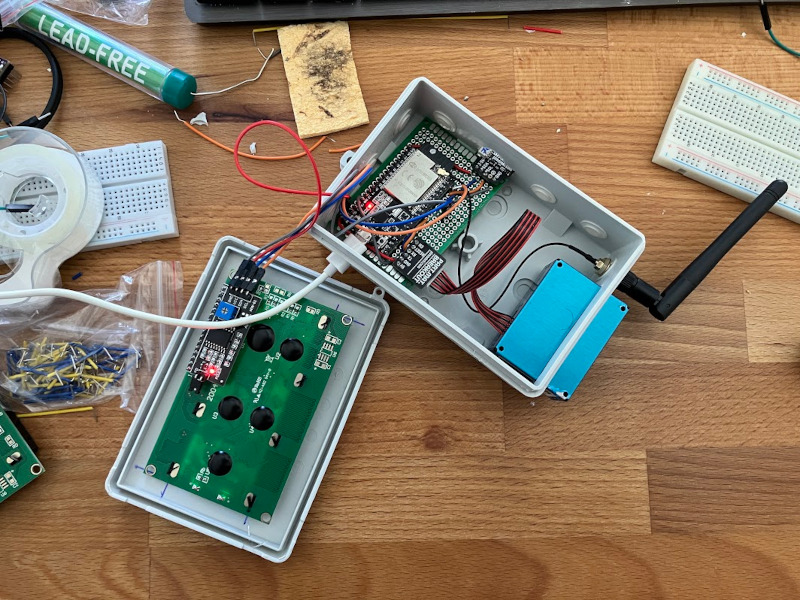
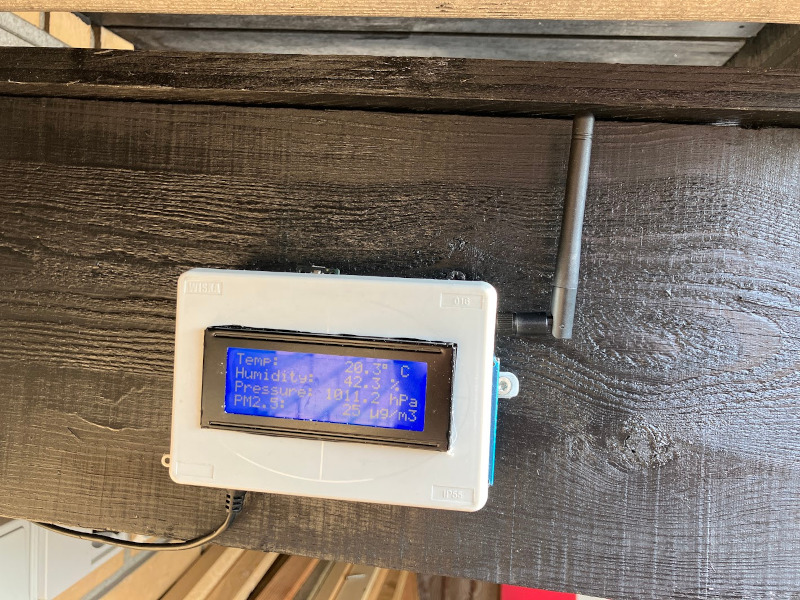
<p>Right now, I am sharing the data from my prototype (see below), but I am also working on a more robust version that will be deployed outdoors.</p>

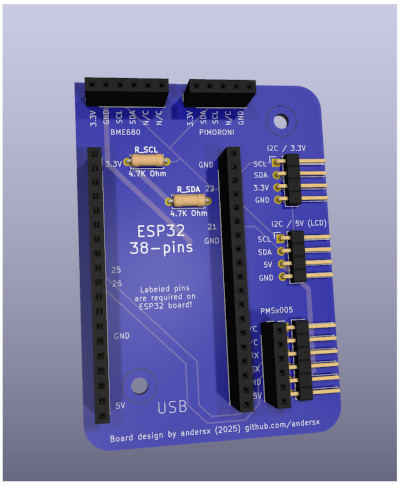
<p>I’ve designed a PCB that is being manufactured, and I need to do more testing before I can deploy more measureing stations.</p>

<hr />

<h2 id="what-is-pm25">What is PM2.5?</h2>

<p>I’m focusing on a specific type of air pollution: <strong>PM2.5</strong>.
PM2.5 refers to fine particulate matter that is 2.5 micrometers or smaller in diameter. 
These particles are small enough to penetrate deep into your lungs and even enter your bloodstream.</p>

<p>The reason that I am focusing on PM2.5 is a good measure of particle pollution, and it is also realitvely easy to measure.</p>

<h3 id="what-is-measured">What is measured?</h3>

<p>The PM2.5 levels are measured in micrograms per cubic meter of air (µg/m³) .
<a href="https://www.who.int/news-room/feature-stories/detail/what-are-the-who-air-quality-guidelines">The World Health Organization (WHO) recommends</a> that PM2.5 levels should not exceed <strong>5 µg/m³</strong> as an annual mean, and <strong>10 µg/m³</strong> as a 24-hour mean.</p>

<p>As you can probably see from the plot above, the levels in my area are often much higher than this.</p>

<p>During the winter months, when the air quality is often poor due to woodburning in private households.
Woodburners are the single largest source of PM2.5 emissions in Denmark, and they are responsible for about 43% of the total PM2.5 emissions in the country according the Danish Ministry of the Environment.</p>

<p>In the summer, the levels are mostly affected by emmisions from the airport, and will depend heavily on the wind direction.</p>

<p>One goal of this project is to collect the data do document this and estimate the health effects.</p>

<h3 id="what-hardware-am-i-using">What hardware am I using?</h3>

<p>I’m currently using a <a href="https://www.plantower.com/en/products_33/74.html"><strong>PMS5003</strong></a> sensor, which is a low-cost laser-based sensor that can measure PM1.0, PM2.5, and PM10 levels.</p>

<p>If you are interested you can read a scientific review of the PMS5003 sensor here:</p>
<blockquote>
  <p><a href="https://doi.org/10.4236/ojap.2021.101001">Nam H. Nguyen, Huy X. Nguyen, Thuan T. B. Le, Chinh D. Vu,
published by Open Journal of Air Pollution, Vol.10 No.1, 2021</a>.</p>
</blockquote>

<p>For practical purposes the accuracy is about ±10% for PM2.5, which is more than sufficient for this project - simply to determine whether the air quality is mostly good or bad.</p>

<hr />

<h2 id="how-it-works">How It Works</h2>

<p>This is a custom solution built with open-source tools and low-cost hardware:</p>

<ul>
  <li>I’m using an <strong>ESP32</strong> microcontroller connected to the <strong>PMS5003</strong> particle sensor.
    <ul>
      <li>The PMS5003 sensor continuously measures particle levels and sends the data to the ESP32.</li>
    </ul>
  </li>
  <li>The ESP32 pushes data to a <strong>bucket on InfluxDB Cloud</strong> every few minutes.</li>
  <li>A simple<strong>cron job on my Raspberry Pi</strong> pulls this data periodically, processes it, and uploads it to a <a href="https://github.com/andersx/data-upload">public GitHub repository</a>.</li>
  <li>This blog then loads the latest data from that github repo and serves it in the plot above.</li>
</ul>

<hr />

<h2 id="future-plans">Future Plans</h2>

<p>My plan is to monitor the air quality from several locations on Amager, and to make the data available to the public.</p>

<p>To make this possible, I’m currently working on a custom PCB to integrate everything.</p>

<ul>
  <li>It will include the PMS5003, an ESP32, and support for a small LCD display.</li>
  <li>I’m also designing a <strong>3D-printed enclosure</strong> to make the sensor weatherproof and mountable outdoors.</li>
  <li>Here’s a preview of the prototype being manufactured:</li>
</ul>

<p><img src="/assets/images/pcbway.jpg" alt="PCB Prototype" /></p>

<p>I designed the board in KiCAD, and it’s currently being fabricated by PCBWay.</p>

<hr />

<h2 id="photos-of-the-current-setup">Photos of the Current Setup</h2>

<p>Here’s the current test setup, mounted under my soffit:</p>

<p><img src="/assets/images/open_weatherstation.jpg" alt="Open Weatherstation" /></p>

<p>And here’s the final version enclosed and deployed:</p>

<p><img src="/assets/images/weatherstation.jpg" alt="Weatherstation" /></p>

<hr />

<p><em>– Anders</em></p>]]></content><author><name>skrevet af andersx</name></author><summary type="html"><![CDATA[The plot below shows real-time PM2.5 levels measured in my area. This page updates with fresh data several times per hour.]]></summary></entry><entry xml:lang="da"><title type="html">Opsætning af Unifi Gateway (og IPv6) hos NetNørden</title><link href="https://andersx.dk/guides/networking/unifi/ubiquiti/router/ipv6/netnoerden/netn%C3%B8rden/2025/04/10/unifi-ipv6-netnoerden.html" rel="alternate" type="text/html" title="Opsætning af Unifi Gateway (og IPv6) hos NetNørden" /><published>2025-04-10T00:00:00+00:00</published><updated>2025-04-10T00:00:00+00:00</updated><id>https://andersx.dk/guides/networking/unifi/ubiquiti/router/ipv6/netnoerden/netn%C3%B8rden/2025/04/10/unifi-ipv6-netnoerden</id><content type="html" xml:base="https://andersx.dk/guides/networking/unifi/ubiquiti/router/ipv6/netnoerden/netn%C3%B8rden/2025/04/10/unifi-ipv6-netnoerden.html"><![CDATA[<p>Dette er en kort guide til opsætning af en Unifi Gateway (inkl. IPv6) med fiberforbindelse via den ny udbyder NetNørden.</p>

<p>Jeg bruger i denne guide en <strong>Unifi UCG-Ultra</strong> med <strong>UniFi OS version 4.1.13</strong> og <strong>Unifi Network version 9.0.114</strong>.
Routeren er tilsluttet direkte fra sit <strong>WAN-stik til en LAN-port</strong> i fiberboksen fra TDC.</p>

<p>Alt konfigureres direkte i UniFi Network-appen, og det var <strong>ikke nødvendigt at genstarte routeren</strong> undervejs — heller ikke ved skiftet fra min tidligere udbyder (Hiper) til NetNørden.</p>

<p>Du kan også trykke her for at se min guide til <a href="https://andersx.dk/guides/networking/ubiquiti/2025/03/16/dk-unifi-hiper.html"><strong>opsætning af IPv6 hos Hiper</strong></a>.</p>

<hr />

<h2 id="opsætning-af-wan-med-ipv4-og-ipv6">Opsætning af WAN med IPv4 og IPv6</h2>

<ol>
  <li>Log ind på din UniFi Controller og gå til <strong>Settings</strong> &gt; <strong>Internet</strong></li>
  <li>
    <p>Vælg <strong>Primary (WAN1)</strong> og klik på <strong>Manual</strong></p>
  </li>
  <li>
    <p><strong>VLAN ID</strong> skal være slået fra. (De fleste udbydere kræver VLAN ID = 101, men NetNørden gør ikke.)</p>
  </li>
  <li>Din <strong>IPv4 Configuration</strong> burde virke med indstillingen fra <strong>Auto</strong>, intet at ændre her.</li>
  <li>Under <strong>IPv6 Configuration</strong>, vælg:
    <ul>
      <li><strong>IPv6 Connection</strong>: <code class="language-plaintext highlighter-rouge">DHCPv6</code></li>
      <li><strong>Prefix Delegation Size</strong>: <del><code class="language-plaintext highlighter-rouge">48</code> (NetNørden bruger /48)</del>
        <ul>
          <li><code class="language-plaintext highlighter-rouge">Auto</code> - NetNørden tildeler dynamisk prefix <code class="language-plaintext highlighter-rouge">/56</code> (Updated December 2025)</li>
        </ul>
      </li>
      <li><strong>DNS Servers</strong>: <code class="language-plaintext highlighter-rouge">Auto</code></li>
    </ul>
  </li>
  <li>Klik på <strong>Apply Changes</strong> og vent — din router bør få tildelt en offentlig IPv6-adresse med det samme.
Jeg skulle hverken genstarte eller unplugge routeren, før det virkede - fantastisk!</li>
</ol>

<p><img src="/assets/images/netnoerden-ipv6-wan.png" alt="Unifi Controller - WAN setup" /></p>

<hr />

<h2 id="opsætning-af-lan-med-ipv4-og-ipv6">Opsætning af LAN med IPv4 og IPv6</h2>

<ol>
  <li>Gå til <strong>Settings</strong> &gt; <strong>Networks</strong>, og vælg dit LAN-netværk i listen (typisk kaldet <strong>Default</strong>)</li>
  <li>IPv4-opsætningen burde virke med <strong>Auto</strong></li>
  <li>Gå til <strong>IPv6</strong>, vælg <strong>Prefix Delegation</strong>, og lad resten af indstillingerne være uændrede
    <ul>
      <li><strong>Advanced</strong> kan bare stilles til <strong>Auto</strong>, så burde det køre fint med <a href="https://en.wikipedia.org/wiki/IPv6_address#Stateless_address_autoconfiguration_(SLAAC)">SLAAC</a> på dit LAN.</li>
    </ul>
  </li>
</ol>

<p><img src="/assets/images/netnoerden-ipv6-lan.png" alt="Unifi Controller - LAN setup" /></p>

<p>Det burde være alt der skal til!</p>

<hr />

<h2 id="test-opsætningen">Test opsætningen</h2>

<ul>
  <li>Check at din router har fået tildelt en offentlig WAN IPv6 adresse på forsiden af Unifi Network. Hvis du har fast IP burde du kunne se den IPv4 og IPv6 du har fået tildelt i din velkomst email.</li>
</ul>

<p><img src="/assets/images/unifi-netnoerden-landing-page.png" alt="Unifi Controller" /></p>

<hr />

<ul>
  <li>Check at din computer har fået en IPv6 adresse f.eks. <code class="language-plaintext highlighter-rouge">nmcli device show | grep IP6</code> i terminalen:</li>
</ul>

<div class="language-plaintext highlighter-rouge"><div class="highlight"><pre class="highlight"><code>$ nmcli device show | grep IP6
IP6.ADDRESS[1]:                         ****:****:****:****:***:****:****:****/64
IP6.ADDRESS[2]:                         ****:****:****:****:****:****:****:****/64
IP6.ADDRESS[3]:                         ****::****:****:****:****/64
IP6.GATEWAY:                            ****::****:****:****:****
IP6.ROUTE[1]:                           dst = ****::/64, nh = ::, mt = 1024
IP6.ROUTE[2]:                           dst = ****:****:****:****::/64, nh = ::, mt = 100
IP6.ROUTE[3]:                           dst = ::/0, nh = ****::****:****:****:****, mt = 100
IP6.DNS[1]:                             ****:****:****:****::1
IP6.GATEWAY:                            --
IP6.ADDRESS[1]:                         ::1/128
IP6.GATEWAY:                            --
IP6.ROUTE[1]:                           dst = ::1/128, nh = ::, mt = 256

</code></pre></div></div>

<hr />

<p>For at teste at IPv6 virker korrekt kan du f.eks. bruge <a href="https://da.sikkerpånettet.dk/connection/">sikkerpånettet.dk/connection/</a>.</p>

<p><img src="/assets/images/sikker-paa-nettet-ipv6.png" alt="Sikker På Nettet" /></p>

<p><em>Glædelig IPv6!</em></p>]]></content><author><name>skrevet af andersx</name></author><category term="guides" /><category term="networking" /><category term="unifi" /><category term="ubiquiti" /><category term="router" /><category term="ipv6" /><category term="netnoerden" /><category term="netnørden" /><summary type="html"><![CDATA[Dette er en kort guide til opsætning af en Unifi Gateway (inkl. IPv6) med fiberforbindelse via den ny udbyder NetNørden.]]></summary></entry><entry><title type="html">Live Humidity Plot</title><link href="https://andersx.dk/2025/04/01/humidity-plot.html" rel="alternate" type="text/html" title="Live Humidity Plot" /><published>2025-04-01T00:00:00+00:00</published><updated>2025-04-01T00:00:00+00:00</updated><id>https://andersx.dk/2025/04/01/humidity-plot</id><content type="html" xml:base="https://andersx.dk/2025/04/01/humidity-plot.html"><![CDATA[<p>This interactive Plotly chart shows real-time data pulled directly from a live CSV file hosted on GitHub.</p>

<p>I wanted a simple but robust setup to continuously log humidity (and temperature) data from an ESP32-based sensor, store it in a CSV file, and push it to GitHub where it could be visualized and accessed easily.</p>

<p>The data comes from a sensor connected to an ESP32 microcontroller.
Live output is served via JSON/requests from webserver running on the ESP32.
My Raspberry Pi collects this data every minutes via a cron job.
Every 1 hour, my bot <a href="https://github.com/andersx-bot/">andersx-bot</a> automatically pushes it to a GitHub repository:
👉 <a href="https://github.com/andersx/data-upload">View the CSV on GitHub</a></p>

<p>This keeps things super lightweight and easy to scrape.</p>

<p>Rather than generating static plots, this page dynamically fetches the latest CSV data from GitHub and visualizes it using Plotly.js — entirely in your browser.</p>

<iframe src="/assets/humidity_plot.html" width="100%" height="650" style="border:none;"></iframe>

<hr />

<h3 id="how-it-works">How it works</h3>

<ul>
  <li><strong>Hardware</strong>: ESP32 with a humidity sensor - served data in JSON format over HTTP</li>
  <li><strong>Collector</strong>: Raspberry Pi pulls data every 5 minuts via a cron job</li>
  <li><strong>Uploader</strong>: GitHub bot commits+pushes to the CSV every few minutes</li>
  <li><strong>Frontend</strong>: JavaScript fetches and visualizes the data live with Plotly on this page</li>
</ul>

<p>This setup ensures the chart is always up-to-date without needing server-side rendering or plot regeneration, and cleanly separates the data collection from the visualization.</p>]]></content><author><name>skrevet af andersx</name></author><summary type="html"><![CDATA[This interactive Plotly chart shows real-time data pulled directly from a live CSV file hosted on GitHub.]]></summary></entry><entry><title type="html">Test Plotly i Jekyll</title><link href="https://andersx.dk/2025/03/27/test-plotly.html" rel="alternate" type="text/html" title="Test Plotly i Jekyll" /><published>2025-03-27T00:00:00+00:00</published><updated>2025-03-27T00:00:00+00:00</updated><id>https://andersx.dk/2025/03/27/test-plotly</id><content type="html" xml:base="https://andersx.dk/2025/03/27/test-plotly.html"><![CDATA[<p>Her bliver vist en test af Plotly i Jekyll.</p>

<div>                        <script type="text/javascript">window.PlotlyConfig = {MathJaxConfig: 'local'};</script>
        <script charset="utf-8" src="https://cdn.plot.ly/plotly-3.0.1.min.js"></script>                <div id="745dd989-032a-4bb3-9973-aa786d9a371f" class="plotly-graph-div" style="height:400px; width:100%;"></div>            <script type="text/javascript">                window.PLOTLYENV=window.PLOTLYENV || {};                                if (document.getElementById("745dd989-032a-4bb3-9973-aa786d9a371f")) {                    Plotly.newPlot(                        "745dd989-032a-4bb3-9973-aa786d9a371f",                        [{"mode":"lines","name":"PM2.5","x":["2024-01-01T00:00:00.000000000","2024-01-02T00:00:00.000000000","2024-01-03T00:00:00.000000000","2024-01-04T00:00:00.000000000","2024-01-05T00:00:00.000000000","2024-01-06T00:00:00.000000000","2024-01-07T00:00:00.000000000","2024-01-08T00:00:00.000000000","2024-01-09T00:00:00.000000000","2024-01-10T00:00:00.000000000","2024-01-11T00:00:00.000000000","2024-01-12T00:00:00.000000000","2024-01-13T00:00:00.000000000","2024-01-14T00:00:00.000000000","2024-01-15T00:00:00.000000000","2024-01-16T00:00:00.000000000","2024-01-17T00:00:00.000000000","2024-01-18T00:00:00.000000000","2024-01-19T00:00:00.000000000","2024-01-20T00:00:00.000000000","2024-01-21T00:00:00.000000000","2024-01-22T00:00:00.000000000","2024-01-23T00:00:00.000000000","2024-01-24T00:00:00.000000000","2024-01-25T00:00:00.000000000","2024-01-26T00:00:00.000000000","2024-01-27T00:00:00.000000000","2024-01-28T00:00:00.000000000","2024-01-29T00:00:00.000000000","2024-01-30T00:00:00.000000000","2024-01-31T00:00:00.000000000","2024-02-01T00:00:00.000000000","2024-02-02T00:00:00.000000000","2024-02-03T00:00:00.000000000","2024-02-04T00:00:00.000000000","2024-02-05T00:00:00.000000000","2024-02-06T00:00:00.000000000","2024-02-07T00:00:00.000000000","2024-02-08T00:00:00.000000000","2024-02-09T00:00:00.000000000","2024-02-10T00:00:00.000000000","2024-02-11T00:00:00.000000000","2024-02-12T00:00:00.000000000","2024-02-13T00:00:00.000000000","2024-02-14T00:00:00.000000000","2024-02-15T00:00:00.000000000","2024-02-16T00:00:00.000000000","2024-02-17T00:00:00.000000000","2024-02-18T00:00:00.000000000","2024-02-19T00:00:00.000000000","2024-02-20T00:00:00.000000000","2024-02-21T00:00:00.000000000","2024-02-22T00:00:00.000000000","2024-02-23T00:00:00.000000000","2024-02-24T00:00:00.000000000","2024-02-25T00:00:00.000000000","2024-02-26T00:00:00.000000000","2024-02-27T00:00:00.000000000","2024-02-28T00:00:00.000000000","2024-02-29T00:00:00.000000000","2024-03-01T00:00:00.000000000","2024-03-02T00:00:00.000000000","2024-03-03T00:00:00.000000000","2024-03-04T00:00:00.000000000","2024-03-05T00:00:00.000000000","2024-03-06T00:00:00.000000000","2024-03-07T00:00:00.000000000","2024-03-08T00:00:00.000000000","2024-03-09T00:00:00.000000000","2024-03-10T00:00:00.000000000","2024-03-11T00:00:00.000000000","2024-03-12T00:00:00.000000000","2024-03-13T00:00:00.000000000","2024-03-14T00:00:00.000000000","2024-03-15T00:00:00.000000000","2024-03-16T00:00:00.000000000","2024-03-17T00:00:00.000000000","2024-03-18T00:00:00.000000000","2024-03-19T00:00:00.000000000","2024-03-20T00:00:00.000000000","2024-03-21T00:00:00.000000000","2024-03-22T00:00:00.000000000","2024-03-23T00:00:00.000000000","2024-03-24T00:00:00.000000000","2024-03-25T00:00:00.000000000","2024-03-26T00:00:00.000000000","2024-03-27T00:00:00.000000000","2024-03-28T00:00:00.000000000","2024-03-29T00:00:00.000000000","2024-03-30T00:00:00.000000000","2024-03-31T00:00:00.000000000","2024-04-01T00:00:00.000000000","2024-04-02T00:00:00.000000000","2024-04-03T00:00:00.000000000","2024-04-04T00:00:00.000000000","2024-04-05T00:00:00.000000000","2024-04-06T00:00:00.000000000","2024-04-07T00:00:00.000000000","2024-04-08T00:00:00.000000000","2024-04-09T00:00:00.000000000","2024-04-10T00:00:00.000000000","2024-04-11T00:00:00.000000000","2024-04-12T00:00:00.000000000","2024-04-13T00:00:00.000000000","2024-04-14T00:00:00.000000000","2024-04-15T00:00:00.000000000","2024-04-16T00:00:00.000000000","2024-04-17T00:00:00.000000000","2024-04-18T00:00:00.000000000","2024-04-19T00:00:00.000000000","2024-04-20T00:00:00.000000000","2024-04-21T00:00:00.000000000","2024-04-22T00:00:00.000000000","2024-04-23T00:00:00.000000000","2024-04-24T00:00:00.000000000","2024-04-25T00:00:00.000000000","2024-04-26T00:00:00.000000000","2024-04-27T00:00:00.000000000","2024-04-28T00:00:00.000000000","2024-04-29T00:00:00.000000000","2024-04-30T00:00:00.000000000","2024-05-01T00:00:00.000000000","2024-05-02T00:00:00.000000000","2024-05-03T00:00:00.000000000","2024-05-04T00:00:00.000000000","2024-05-05T00:00:00.000000000","2024-05-06T00:00:00.000000000","2024-05-07T00:00:00.000000000","2024-05-08T00:00:00.000000000","2024-05-09T00:00:00.000000000","2024-05-10T00:00:00.000000000","2024-05-11T00:00:00.000000000","2024-05-12T00:00:00.000000000","2024-05-13T00:00:00.000000000","2024-05-14T00:00:00.000000000","2024-05-15T00:00:00.000000000","2024-05-16T00:00:00.000000000","2024-05-17T00:00:00.000000000","2024-05-18T00:00:00.000000000","2024-05-19T00:00:00.000000000","2024-05-20T00:00:00.000000000","2024-05-21T00:00:00.000000000","2024-05-22T00:00:00.000000000","2024-05-23T00:00:00.000000000","2024-05-24T00:00:00.000000000","2024-05-25T00:00:00.000000000","2024-05-26T00:00:00.000000000","2024-05-27T00:00:00.000000000","2024-05-28T00:00:00.000000000","2024-05-29T00:00:00.000000000","2024-05-30T00:00:00.000000000","2024-05-31T00:00:00.000000000","2024-06-01T00:00:00.000000000","2024-06-02T00:00:00.000000000","2024-06-03T00:00:00.000000000","2024-06-04T00:00:00.000000000","2024-06-05T00:00:00.000000000","2024-06-06T00:00:00.000000000","2024-06-07T00:00:00.000000000","2024-06-08T00:00:00.000000000","2024-06-09T00:00:00.000000000","2024-06-10T00:00:00.000000000","2024-06-11T00:00:00.000000000","2024-06-12T00:00:00.000000000","2024-06-13T00:00:00.000000000","2024-06-14T00:00:00.000000000","2024-06-15T00:00:00.000000000","2024-06-16T00:00:00.000000000","2024-06-17T00:00:00.000000000","2024-06-18T00:00:00.000000000","2024-06-19T00:00:00.000000000","2024-06-20T00:00:00.000000000","2024-06-21T00:00:00.000000000","2024-06-22T00:00:00.000000000","2024-06-23T00:00:00.000000000","2024-06-24T00:00:00.000000000","2024-06-25T00:00:00.000000000","2024-06-26T00:00:00.000000000","2024-06-27T00:00:00.000000000","2024-06-28T00:00:00.000000000","2024-06-29T00:00:00.000000000","2024-06-30T00:00:00.000000000","2024-07-01T00:00:00.000000000","2024-07-02T00:00:00.000000000","2024-07-03T00:00:00.000000000","2024-07-04T00:00:00.000000000","2024-07-05T00:00:00.000000000","2024-07-06T00:00:00.000000000","2024-07-07T00:00:00.000000000","2024-07-08T00:00:00.000000000","2024-07-09T00:00:00.000000000","2024-07-10T00:00:00.000000000","2024-07-11T00:00:00.000000000","2024-07-12T00:00:00.000000000","2024-07-13T00:00:00.000000000","2024-07-14T00:00:00.000000000","2024-07-15T00:00:00.000000000","2024-07-16T00:00:00.000000000","2024-07-17T00:00:00.000000000","2024-07-18T00:00:00.000000000","2024-07-19T00:00:00.000000000","2024-07-20T00:00:00.000000000","2024-07-21T00:00:00.000000000","2024-07-22T00:00:00.000000000","2024-07-23T00:00:00.000000000","2024-07-24T00:00:00.000000000","2024-07-25T00:00:00.000000000","2024-07-26T00:00:00.000000000","2024-07-27T00:00:00.000000000","2024-07-28T00:00:00.000000000","2024-07-29T00:00:00.000000000","2024-07-30T00:00:00.000000000","2024-07-31T00:00:00.000000000","2024-08-01T00:00:00.000000000","2024-08-02T00:00:00.000000000","2024-08-03T00:00:00.000000000","2024-08-04T00:00:00.000000000","2024-08-05T00:00:00.000000000","2024-08-06T00:00:00.000000000","2024-08-07T00:00:00.000000000","2024-08-08T00:00:00.000000000","2024-08-09T00:00:00.000000000","2024-08-10T00:00:00.000000000","2024-08-11T00:00:00.000000000","2024-08-12T00:00:00.000000000","2024-08-13T00:00:00.000000000","2024-08-14T00:00:00.000000000","2024-08-15T00:00:00.000000000","2024-08-16T00:00:00.000000000","2024-08-17T00:00:00.000000000","2024-08-18T00:00:00.000000000","2024-08-19T00:00:00.000000000","2024-08-20T00:00:00.000000000","2024-08-21T00:00:00.000000000","2024-08-22T00:00:00.000000000","2024-08-23T00:00:00.000000000","2024-08-24T00:00:00.000000000","2024-08-25T00:00:00.000000000","2024-08-26T00:00:00.000000000","2024-08-27T00:00:00.000000000","2024-08-28T00:00:00.000000000","2024-08-29T00:00:00.000000000","2024-08-30T00:00:00.000000000","2024-08-31T00:00:00.000000000","2024-09-01T00:00:00.000000000","2024-09-02T00:00:00.000000000","2024-09-03T00:00:00.000000000","2024-09-04T00:00:00.000000000","2024-09-05T00:00:00.000000000","2024-09-06T00:00:00.000000000","2024-09-07T00:00:00.000000000","2024-09-08T00:00:00.000000000","2024-09-09T00:00:00.000000000","2024-09-10T00:00:00.000000000","2024-09-11T00:00:00.000000000","2024-09-12T00:00:00.000000000","2024-09-13T00:00:00.000000000","2024-09-14T00:00:00.000000000","2024-09-15T00:00:00.000000000","2024-09-16T00:00:00.000000000","2024-09-17T00:00:00.000000000","2024-09-18T00:00:00.000000000","2024-09-19T00:00:00.000000000","2024-09-20T00:00:00.000000000","2024-09-21T00:00:00.000000000","2024-09-22T00:00:00.000000000","2024-09-23T00:00:00.000000000","2024-09-24T00:00:00.000000000","2024-09-25T00:00:00.000000000","2024-09-26T00:00:00.000000000","2024-09-27T00:00:00.000000000","2024-09-28T00:00:00.000000000","2024-09-29T00:00:00.000000000","2024-09-30T00:00:00.000000000","2024-10-01T00:00:00.000000000","2024-10-02T00:00:00.000000000","2024-10-03T00:00:00.000000000","2024-10-04T00:00:00.000000000","2024-10-05T00:00:00.000000000","2024-10-06T00:00:00.000000000","2024-10-07T00:00:00.000000000","2024-10-08T00:00:00.000000000","2024-10-09T00:00:00.000000000","2024-10-10T00:00:00.000000000","2024-10-11T00:00:00.000000000","2024-10-12T00:00:00.000000000","2024-10-13T00:00:00.000000000","2024-10-14T00:00:00.000000000","2024-10-15T00:00:00.000000000","2024-10-16T00:00:00.000000000","2024-10-17T00:00:00.000000000","2024-10-18T00:00:00.000000000","2024-10-19T00:00:00.000000000","2024-10-20T00:00:00.000000000","2024-10-21T00:00:00.000000000","2024-10-22T00:00:00.000000000","2024-10-23T00:00:00.000000000","2024-10-24T00:00:00.000000000","2024-10-25T00:00:00.000000000","2024-10-26T00:00:00.000000000","2024-10-27T00:00:00.000000000","2024-10-28T00:00:00.000000000","2024-10-29T00:00:00.000000000","2024-10-30T00:00:00.000000000","2024-10-31T00:00:00.000000000","2024-11-01T00:00:00.000000000","2024-11-02T00:00:00.000000000","2024-11-03T00:00:00.000000000","2024-11-04T00:00:00.000000000","2024-11-05T00:00:00.000000000","2024-11-06T00:00:00.000000000","2024-11-07T00:00:00.000000000","2024-11-08T00:00:00.000000000","2024-11-09T00:00:00.000000000","2024-11-10T00:00:00.000000000","2024-11-11T00:00:00.000000000","2024-11-12T00:00:00.000000000","2024-11-13T00:00:00.000000000","2024-11-14T00:00:00.000000000","2024-11-15T00:00:00.000000000","2024-11-16T00:00:00.000000000","2024-11-17T00:00:00.000000000","2024-11-18T00:00:00.000000000","2024-11-19T00:00:00.000000000","2024-11-20T00:00:00.000000000","2024-11-21T00:00:00.000000000","2024-11-22T00:00:00.000000000","2024-11-23T00:00:00.000000000","2024-11-24T00:00:00.000000000","2024-11-25T00:00:00.000000000","2024-11-26T00:00:00.000000000","2024-11-27T00:00:00.000000000","2024-11-28T00:00:00.000000000","2024-11-29T00:00:00.000000000","2024-11-30T00:00:00.000000000","2024-12-01T00:00:00.000000000","2024-12-02T00:00:00.000000000","2024-12-03T00:00:00.000000000","2024-12-04T00:00:00.000000000","2024-12-05T00:00:00.000000000","2024-12-06T00:00:00.000000000","2024-12-07T00:00:00.000000000","2024-12-08T00:00:00.000000000","2024-12-09T00:00:00.000000000","2024-12-10T00:00:00.000000000","2024-12-11T00:00:00.000000000","2024-12-12T00:00:00.000000000","2024-12-13T00:00:00.000000000","2024-12-14T00:00:00.000000000","2024-12-15T00:00:00.000000000","2024-12-16T00:00:00.000000000","2024-12-17T00:00:00.000000000","2024-12-18T00:00:00.000000000","2024-12-19T00:00:00.000000000","2024-12-20T00:00:00.000000000","2024-12-21T00:00:00.000000000","2024-12-22T00:00:00.000000000","2024-12-23T00:00:00.000000000","2024-12-24T00:00:00.000000000","2024-12-25T00:00:00.000000000","2024-12-26T00:00:00.000000000","2024-12-27T00:00:00.000000000","2024-12-28T00:00:00.000000000","2024-12-29T00:00:00.000000000","2024-12-30T00:00:00.000000000","2024-12-31T00:00:00.000000000"],"y":{"dtype":"f8","bdata":"lG9alpb3OECZp4obC54yQIBdCykVejpALoVgbHqdQUADJ40+kagxQN8u\u002fwCcqDFAQiSUdGTlQUB8QysGoqw7QHT+aYhKnC5ANy5xJvRsOUBtp2MpTbsuQAjViLJ2ry5AfWvwZGxrNkAgzWMVFcDrP6iLVcuuAQZAQjpbfRbBLEAp2nP+Tb4jQPWEwyF5JDdAhB0Jr+rWJUCOzs2VAoIXQCS04ckHVEFAD\u002fxjPgO+MUAa7MJI36w0QIwdXx2UAhdApyPhrMIcLUA+6nc69hs1QKZNvbLp+iBArKoLdMnBN0CdujnbuvwrQBfniZVDFTFAeMH1G0P3K0D7zPeD6kJDQFyjc3Vy3TNAqECWIYXYIkBxvpkItzk8QLrOSZ+PKh9AQrR62LAWNkCAYXibpc\u002fZP4Icx\u002fZf3xpAjRTD+vb3NUBMsTZ1eWI7QJnTsOqztjVAEgrdvfDXMkCFZJuuLP0wQPAzRlDv2xRAKJiWzGWaKUBcKdWMh8kuQH3ZRp87kj5APQqorqlvN0B4lb4H8PQCQMkVkaunPTdAnm0JejAmMEAw3LbLKHYqQA4aMyzkHTpABB7Z2FtPPkDKMCa9E1A9QKyS1s40NydAeAHOk2roMED2Y2rNCFA3QICgJ0FlwT1ABmAzvqBqLkBmM3aItiQyQER2dJ+Q3yFAj0y+DWwTIEDHYkfsECA8QF8wibv8x0BAmFBccqdHM0BCEOlRCwk+QKpZDsnJnTdAUlmfovwYK0B+xFk5LJ03QAoeddKvsEFAgcYIDEmkM0A\u002fE+JuvtJBQAAAAAAAAAAAvOt3BhI4PEDN9Kgq1940QNra9IqKAjFAZsGuV+jqNEAA820M1tK\u002fP4Hf4tSjzTFAiVV8SzWSN0ABlxFStGNBQGJ6CNx0oi1AkfjKQ4PUJ0DcVQECAfctQA0yju5tJz1A3B7FU5pJN0Ao96m0oGctQME86fH2ITlAsEEkvoT4NEDaulUuu689QLXSAvh89SlAGEHqVS+5MEA0BjIANBQwQNid1l+bdRVAhr+AYhH2NkArnOQuTZw2QCR9qicXDTRA3uns+XSnMUD2IJ+FmmIXQPwlNsNLli9A3odMnaaSMEASYT8jV\u002fQnQPXSxssbYzJAaGT\u002fxF4KOECoYGdlUW5DQBczv1DrvjVAUENcOVSTNkCqougfa0EzQIAFOxVD\u002fuk\u002f0I3Y3R+8M0B7R2t4MJo0QHNF6CzzUEZAdmFwUY4TMkCSL\u002fcQ9gM3QAZMa0sjpzNAvWmRUl6gIECapRZcoG0\u002fQMu3EdXyhDtAMWlisgrpO0BCR92s788lQFBtyqOTA0FAwMXJjAvtF0BI+jyqWt45QCL33H\u002fI80RA\u002fkVZOnQwJEAQJGc9jqwsQCGIxIQb\u002fzRAOsYAZDTuLUBgtvLaNPkRQGYVYW6FrzRAaYq+RgHBIkDPHAyJZbw4QMdRiESMnCVATnp+geq\u002fQUB0oaI+vlUoQOn2xcOFxzBARlvBpJoiPEBWHNwL88MeQBfAiiRMRjZAYjuoiSSJQEBoTJdMvmYPQC1OQaWp2DVAmOa8yUyZNkDGe+9vd9E7QGSWsO2fhR5A8KRYN4YuG0DkedufKzg5QHB\u002fHeBH+DZAciyR\u002fkKBNkABeW9M6HY3QED6Nv9FZipA5NBwyJFSNkC2weH5Q+42QLCCMk+FtilAtmLn\u002fTBUQ0DD154kA704QH0VHq6GLCBA5IcT+caQOkCMQr89oYEkQOqWEsTv3jtAFEXbMgGWP0CWeo1FG5YnQKqDGC4+oj1AWgy4G7ggOEBoNbFYeTg8QK7n4h\u002fle0NA+2e9cc6LMUApcUXv3uwoQATElKWvNSZA+KiuJA2vJ0DdAayfnjozQHMItFtZaTdA60MOFVTENkBkFmjQlkU8QHMEfOtIITRAow\u002fhC4ZEQUDwzG1\u002feloxQDBzUgjRmUdA8kFgWrVBOkCxdJlyWtsmQGTq8cgHlSJAh+o+HyHTOEAmhtNt78MxQKWIIl3XIztAD813An27OEDbWgPYjkUzQFbCsIlqECdAkIMt5PZnE0BX8Qns1xEvQAyIi4NhkDxAlyzleRQkNkDU6zKJoiseQOE3ANpXuzVAXSgVmWnaN0Bny5dhplImQA4aEkmJiTVAKq1sqgOVNECkXKL4\u002fSMhQDEuRIbvkzdATotIv5ubOUCxTHV2nNQ+QNp5e7a7iT5AoO58aarkGECg5LP2VT4lQGh6QYN9JjlAOh\u002fDwkojOUBBptWmhSY5QCMoCw5\u002fQ01AKT0aznq1OUCoXkZMDFs\u002fQNtLgZg+ij1A1pY8xY+DOkDWWdgl6dgwQFjkfhH2ljtAKb3oiCKLKEB8rNGOvqExQMIRZErwSi5AJYY2CZnRNEBDWLJRw5JFQPB8iVXRPPU\u002ffQ12etPcOkAYBpg2lPsOQOjhAXe1jy5AW1jJqbbjPkA\u002fA6aNjqQ0QE0tW13ycSJAPGtIH6WxKUC1GEUuxcs6QFa0NdmFZClAvu0fTSIqNkDlDQT2qXQ0QGpqc2TO9ypAHYZkmT+4REB4rqMr1VY6QAAAAAAAAAAA7FMhs1LdNUC0r7E+p8MqQDSz1bU6hjxAepi8N0smKEALZ2JTRtoyQMErkXbEDDlALAf1UlWoPEDEkJf89vwfQFrqI0WtpzBAxICHrkeALkCqgOtO9O4qQI31ogvI00JA5o1o0MAMOEBkMeNdjJAdQHRucAG6LT1Abt2DJFycRECiO+NuHFM+QHwd5MumORNAhJxMt7hQLkC7eANypVVAQHLKX3q72ClAuywcgC1wOEAceFosEL87QCIgOrEddiVAcVFwdp1nM0AAAAAAAAAAAFvaeKEigyNAUI2x72x5MUB2fGZBsxYeQBMJPIl8KUJAuhuoL1rLFkDmBvHj+DIvQAsKDSWyTjVAxa9tbtQ0QUDUzbyFxZAWQGX7If+yoT9AxivAVjIaNEDUKBz7rF4kQIpJBSL8njhA0GUYw5f9NUAg6hm84\u002f4rQFg\u002fkn6xsjRAAr+T4ZglMEAZ1DW6miI1QJJ2d\u002fUNnzpAbUCF\u002fRnuQUAwRVLwxHweQDsgT2BIqkRAQFxTV++p3j\u002fpBMAebnsyQNxAf5AX4jlApKOX1FbPNkCCtg5Jx4srQK50gwA16zFAjNue0NUjLkBEMWbTczYsQOYu9Tr7fjxAsNo7q\u002fWRN0D6agmJTSQqQAG3PMb5\u002fjxAQmpi0K8SN0C8tHVR7SA8QHzNzo7ZSzpAytnGqItrJ0CLS8qB38ssQLskSVYSeTtALuDUQYwaOkCq5W7ufcozQGBdhqxbLDVA7EqpO2ljQEAnBJqMJyssQI2GXr2ReDlAnwz3BWP6MUAC2ldyvNIxQD7e0GXe\u002fD5AhN\u002fE2xBBPEA8CdCslSI8QKO+p0sDh0BA2AfhE8U1NEAOOAOzzNE6QH7zEZS35TBAwgMoqd09N0B35Khy1bIyQHrgjkZP+DRAolyyG5rzOUB6BzzJtaInQI4tZnZBdkRARQbR5TDhI0AYCyRntW4fQHI\u002fxIrDlD9ANlcoEKjqO0C+Ps4pvz06QBXJUIOQSDpA3Gh39KXgM0CigQ3ADg4mQD9Md0YPwjRAuAr7me50KkCCIu93TsA9QBMhdnmIhzJA0LpwUHR9J0CTByeTQMkwQAcJBMIaIThAFRhD9Lq5LECHwnpIO44nQKsc1tnWbzZAkkDDSh1zNkAZA\u002fFwc9wtQPoeDKxIlC5AI+Y3PwxSNkCaxajInRMWQDzrzSmSsxdAeGlSypChKUCPu09Gk90xQFs512HsGzdAOL6kuXRgQUAIhofPm5M8QB5eXK+OZjJA4aO5iVHPM0DgBBC2DPMjQLCpLzub0DNAJE2lrAgdMUCapPDVKDo3QC4SkNuTdCdACJN77oYxOUBoQxPj56lBQGmy+PKS6TJAEllQy2EEOEAeTTPExOY6QPxKl03A+S9A"},"type":"scatter"}],                        {"template":{"data":{"barpolar":[{"marker":{"line":{"color":"rgb(17,17,17)","width":0.5},"pattern":{"fillmode":"overlay","size":10,"solidity":0.2}},"type":"barpolar"}],"bar":[{"error_x":{"color":"#f2f5fa"},"error_y":{"color":"#f2f5fa"},"marker":{"line":{"color":"rgb(17,17,17)","width":0.5},"pattern":{"fillmode":"overlay","size":10,"solidity":0.2}},"type":"bar"}],"carpet":[{"aaxis":{"endlinecolor":"#A2B1C6","gridcolor":"#506784","linecolor":"#506784","minorgridcolor":"#506784","startlinecolor":"#A2B1C6"},"baxis":{"endlinecolor":"#A2B1C6","gridcolor":"#506784","linecolor":"#506784","minorgridcolor":"#506784","startlinecolor":"#A2B1C6"},"type":"carpet"}],"choropleth":[{"colorbar":{"outlinewidth":0,"ticks":""},"type":"choropleth"}],"contourcarpet":[{"colorbar":{"outlinewidth":0,"ticks":""},"type":"contourcarpet"}],"contour":[{"colorbar":{"outlinewidth":0,"ticks":""},"colorscale":[[0.0,"#0d0887"],[0.1111111111111111,"#46039f"],[0.2222222222222222,"#7201a8"],[0.3333333333333333,"#9c179e"],[0.4444444444444444,"#bd3786"],[0.5555555555555556,"#d8576b"],[0.6666666666666666,"#ed7953"],[0.7777777777777778,"#fb9f3a"],[0.8888888888888888,"#fdca26"],[1.0,"#f0f921"]],"type":"contour"}],"heatmap":[{"colorbar":{"outlinewidth":0,"ticks":""},"colorscale":[[0.0,"#0d0887"],[0.1111111111111111,"#46039f"],[0.2222222222222222,"#7201a8"],[0.3333333333333333,"#9c179e"],[0.4444444444444444,"#bd3786"],[0.5555555555555556,"#d8576b"],[0.6666666666666666,"#ed7953"],[0.7777777777777778,"#fb9f3a"],[0.8888888888888888,"#fdca26"],[1.0,"#f0f921"]],"type":"heatmap"}],"histogram2dcontour":[{"colorbar":{"outlinewidth":0,"ticks":""},"colorscale":[[0.0,"#0d0887"],[0.1111111111111111,"#46039f"],[0.2222222222222222,"#7201a8"],[0.3333333333333333,"#9c179e"],[0.4444444444444444,"#bd3786"],[0.5555555555555556,"#d8576b"],[0.6666666666666666,"#ed7953"],[0.7777777777777778,"#fb9f3a"],[0.8888888888888888,"#fdca26"],[1.0,"#f0f921"]],"type":"histogram2dcontour"}],"histogram2d":[{"colorbar":{"outlinewidth":0,"ticks":""},"colorscale":[[0.0,"#0d0887"],[0.1111111111111111,"#46039f"],[0.2222222222222222,"#7201a8"],[0.3333333333333333,"#9c179e"],[0.4444444444444444,"#bd3786"],[0.5555555555555556,"#d8576b"],[0.6666666666666666,"#ed7953"],[0.7777777777777778,"#fb9f3a"],[0.8888888888888888,"#fdca26"],[1.0,"#f0f921"]],"type":"histogram2d"}],"histogram":[{"marker":{"pattern":{"fillmode":"overlay","size":10,"solidity":0.2}},"type":"histogram"}],"mesh3d":[{"colorbar":{"outlinewidth":0,"ticks":""},"type":"mesh3d"}],"parcoords":[{"line":{"colorbar":{"outlinewidth":0,"ticks":""}},"type":"parcoords"}],"pie":[{"automargin":true,"type":"pie"}],"scatter3d":[{"line":{"colorbar":{"outlinewidth":0,"ticks":""}},"marker":{"colorbar":{"outlinewidth":0,"ticks":""}},"type":"scatter3d"}],"scattercarpet":[{"marker":{"colorbar":{"outlinewidth":0,"ticks":""}},"type":"scattercarpet"}],"scattergeo":[{"marker":{"colorbar":{"outlinewidth":0,"ticks":""}},"type":"scattergeo"}],"scattergl":[{"marker":{"line":{"color":"#283442"}},"type":"scattergl"}],"scattermapbox":[{"marker":{"colorbar":{"outlinewidth":0,"ticks":""}},"type":"scattermapbox"}],"scattermap":[{"marker":{"colorbar":{"outlinewidth":0,"ticks":""}},"type":"scattermap"}],"scatterpolargl":[{"marker":{"colorbar":{"outlinewidth":0,"ticks":""}},"type":"scatterpolargl"}],"scatterpolar":[{"marker":{"colorbar":{"outlinewidth":0,"ticks":""}},"type":"scatterpolar"}],"scatter":[{"marker":{"line":{"color":"#283442"}},"type":"scatter"}],"scatterternary":[{"marker":{"colorbar":{"outlinewidth":0,"ticks":""}},"type":"scatterternary"}],"surface":[{"colorbar":{"outlinewidth":0,"ticks":""},"colorscale":[[0.0,"#0d0887"],[0.1111111111111111,"#46039f"],[0.2222222222222222,"#7201a8"],[0.3333333333333333,"#9c179e"],[0.4444444444444444,"#bd3786"],[0.5555555555555556,"#d8576b"],[0.6666666666666666,"#ed7953"],[0.7777777777777778,"#fb9f3a"],[0.8888888888888888,"#fdca26"],[1.0,"#f0f921"]],"type":"surface"}],"table":[{"cells":{"fill":{"color":"#506784"},"line":{"color":"rgb(17,17,17)"}},"header":{"fill":{"color":"#2a3f5f"},"line":{"color":"rgb(17,17,17)"}},"type":"table"}]},"layout":{"annotationdefaults":{"arrowcolor":"#f2f5fa","arrowhead":0,"arrowwidth":1},"autotypenumbers":"strict","coloraxis":{"colorbar":{"outlinewidth":0,"ticks":""}},"colorscale":{"diverging":[[0,"#8e0152"],[0.1,"#c51b7d"],[0.2,"#de77ae"],[0.3,"#f1b6da"],[0.4,"#fde0ef"],[0.5,"#f7f7f7"],[0.6,"#e6f5d0"],[0.7,"#b8e186"],[0.8,"#7fbc41"],[0.9,"#4d9221"],[1,"#276419"]],"sequential":[[0.0,"#0d0887"],[0.1111111111111111,"#46039f"],[0.2222222222222222,"#7201a8"],[0.3333333333333333,"#9c179e"],[0.4444444444444444,"#bd3786"],[0.5555555555555556,"#d8576b"],[0.6666666666666666,"#ed7953"],[0.7777777777777778,"#fb9f3a"],[0.8888888888888888,"#fdca26"],[1.0,"#f0f921"]],"sequentialminus":[[0.0,"#0d0887"],[0.1111111111111111,"#46039f"],[0.2222222222222222,"#7201a8"],[0.3333333333333333,"#9c179e"],[0.4444444444444444,"#bd3786"],[0.5555555555555556,"#d8576b"],[0.6666666666666666,"#ed7953"],[0.7777777777777778,"#fb9f3a"],[0.8888888888888888,"#fdca26"],[1.0,"#f0f921"]]},"colorway":["#636efa","#EF553B","#00cc96","#ab63fa","#FFA15A","#19d3f3","#FF6692","#B6E880","#FF97FF","#FECB52"],"font":{"color":"#f2f5fa"},"geo":{"bgcolor":"rgb(17,17,17)","lakecolor":"rgb(17,17,17)","landcolor":"rgb(17,17,17)","showlakes":true,"showland":true,"subunitcolor":"#506784"},"hoverlabel":{"align":"left"},"hovermode":"closest","mapbox":{"style":"dark"},"paper_bgcolor":"rgb(17,17,17)","plot_bgcolor":"rgb(17,17,17)","polar":{"angularaxis":{"gridcolor":"#506784","linecolor":"#506784","ticks":""},"bgcolor":"rgb(17,17,17)","radialaxis":{"gridcolor":"#506784","linecolor":"#506784","ticks":""}},"scene":{"xaxis":{"backgroundcolor":"rgb(17,17,17)","gridcolor":"#506784","gridwidth":2,"linecolor":"#506784","showbackground":true,"ticks":"","zerolinecolor":"#C8D4E3"},"yaxis":{"backgroundcolor":"rgb(17,17,17)","gridcolor":"#506784","gridwidth":2,"linecolor":"#506784","showbackground":true,"ticks":"","zerolinecolor":"#C8D4E3"},"zaxis":{"backgroundcolor":"rgb(17,17,17)","gridcolor":"#506784","gridwidth":2,"linecolor":"#506784","showbackground":true,"ticks":"","zerolinecolor":"#C8D4E3"}},"shapedefaults":{"line":{"color":"#f2f5fa"}},"sliderdefaults":{"bgcolor":"#C8D4E3","bordercolor":"rgb(17,17,17)","borderwidth":1,"tickwidth":0},"ternary":{"aaxis":{"gridcolor":"#506784","linecolor":"#506784","ticks":""},"baxis":{"gridcolor":"#506784","linecolor":"#506784","ticks":""},"bgcolor":"rgb(17,17,17)","caxis":{"gridcolor":"#506784","linecolor":"#506784","ticks":""}},"title":{"x":0.05},"updatemenudefaults":{"bgcolor":"#506784","borderwidth":0},"xaxis":{"automargin":true,"gridcolor":"#283442","linecolor":"#506784","ticks":"","title":{"standoff":15},"zerolinecolor":"#283442","zerolinewidth":2},"yaxis":{"automargin":true,"gridcolor":"#283442","linecolor":"#506784","ticks":"","title":{"standoff":15},"zerolinecolor":"#283442","zerolinewidth":2}}},"title":{"text":"Mock PM2.5-luftkvalitet over tid"},"xaxis":{"title":{"text":"Dato"}},"yaxis":{"title":{"text":"PM2.5 (\u00b5g\u002fm\u00b3)"}},"height":400},                        {"responsive": true}                    )                };            </script>        </div>]]></content><author><name>skrevet af andersx</name></author><summary type="html"><![CDATA[Her bliver vist en test af Plotly i Jekyll.]]></summary></entry><entry xml:lang="en"><title type="html">Setting Up IPv6 on a Ubiquiti Router with Hiper ISP</title><link href="https://andersx.dk/guides/networking/ubiquiti/2025/03/16/dk-unifi-hiper.html" rel="alternate" type="text/html" title="Setting Up IPv6 on a Ubiquiti Router with Hiper ISP" /><published>2025-03-16T00:00:00+00:00</published><updated>2025-03-16T00:00:00+00:00</updated><id>https://andersx.dk/guides/networking/ubiquiti/2025/03/16/dk-unifi-hiper</id><content type="html" xml:base="https://andersx.dk/guides/networking/ubiquiti/2025/03/16/dk-unifi-hiper.html"><![CDATA[<p>This guide explains how to configure a Ubiquiti router for IPv6 support on the Hiper network using the UniFi Network Controller. While many of the steps are similar for other Nuuday ISPs, this guide is tailored for Hiper.</p>

<p>For this example, I am using the UCG-Ultra running UniFi OS version 4.1.13 with Network version 9.0.114. The Ubiquiti router should be connected directly to the fiber ONT box.</p>

<hr />

<h2 id="1-configure-the-internet-connection-wan">1. Configure the Internet Connection (WAN)</h2>

<p>These steps will enable your WAN connection and set up IPv6:</p>

<ol>
  <li>
    <p><strong>Navigate to Settings:</strong><br />
Click the gear icon and select <strong>Internet</strong>.</p>
  </li>
  <li>
    <p><strong>Enable VLAN Tagging:</strong><br />
Hiper (and most other Nuuday ISPs) use VLAN tagging on the WAN interface. Check the VLAN tagging option and enter <strong>101</strong> as the VLAN ID.</p>
  </li>
  <li><strong>Set DHCP for Both IPv4 and IPv6:</strong>
    <ul>
      <li>Ensure both IPv4 and IPv6 are set to <strong>DHCP</strong>.</li>
      <li>For IPv6, set the <strong>Prefix Delegation Size</strong> to <strong>48</strong>.</li>
    </ul>
  </li>
  <li><strong>Reference Screenshot:</strong><br />
<img src="/assets/images/internet.png" alt="Internet Settings" /></li>
</ol>

<hr />

<h2 id="2-configure-ipv6-on-the-lan">2. Configure IPv6 on the LAN</h2>

<p>Follow these steps to enable IPv6 on your LAN:</p>

<ol>
  <li>
    <p><strong>Access Network Settings:</strong><br />
Click the gear icon, then go to <strong>Networks</strong>. Select your network from the list (the default name is “Default”).</p>
  </li>
  <li><strong>Set Up IPv6:</strong>
    <ul>
      <li>Click the <strong>IPv6</strong> tab.</li>
      <li>Change the <strong>Interface Type</strong> to <strong>Prefix Delegation</strong>.</li>
    </ul>
  </li>
  <li><strong>Reference Screenshot:</strong><br />
<img src="/assets/images/lan.png" alt="LAN Settings" /></li>
</ol>

<hr />

<h2 id="3-verify-ipv6-functionality">3. Verify IPv6 Functionality</h2>

<p>Ensure that IPv6 is working properly:</p>

<ol>
  <li>
    <p><strong>Check the WAN Side:</strong><br />
Open the landing page of the Network Controller application. You should see details similar to the screenshot below:</p>

    <p><img src="/assets/images/landing_page.png" alt="Landing Page" /></p>
  </li>
  <li>
    <p><strong>Test LAN Devices:</strong><br />
Devices on your LAN should now receive an IPv6 address and be able to access the internet. Verify by visiting <a href="https://test-ipv6.csclub.uwaterloo.ca/">Test IPv6</a>—a perfect configuration will yield a 10/10 score.</p>

    <p><img src="/assets/images/check.png" alt="IPv6 Test" /></p>
  </li>
</ol>

<hr />

<h2 id="final-words">Final Words</h2>

<ul>
  <li><strong>Feedback:</strong> If you find any errors or have suggestions for improvements, feel free to open an issue or submit a pull request.</li>
  <li><strong>Support:</strong> I no longer use Hiper myself, but I will do my best to assist if you encounter any problems.</li>
</ul>]]></content><author><name>skrevet af andersx</name></author><category term="guides" /><category term="networking" /><category term="ubiquiti" /><summary type="html"><![CDATA[This guide explains how to configure a Ubiquiti router for IPv6 support on the Hiper network using the UniFi Network Controller. While many of the steps are similar for other Nuuday ISPs, this guide is tailored for Hiper.]]></summary></entry><entry><title type="html">Automatic mounting of remote storage via SSHFS on Amazon EC2 instances</title><link href="https://andersx.dk/2014/02/19/automatic-mounting-of-remote-storage.html" rel="alternate" type="text/html" title="Automatic mounting of remote storage via SSHFS on Amazon EC2 instances" /><published>2014-02-19T10:04:00+00:00</published><updated>2014-02-19T10:04:00+00:00</updated><id>https://andersx.dk/2014/02/19/automatic-mounting-of-remote-storage</id><content type="html" xml:base="https://andersx.dk/2014/02/19/automatic-mounting-of-remote-storage.html"><![CDATA[<p>In this blog I demonstrate how you can create an Amazon EC2 instance image that will <strong>automount a folder on a remote server via SSHFS</strong>.</p>

<p>The purpose here is to fire up an EC2 compute server, run a program, and save the output from that program on our <strong>local compute cluster</strong> at the university.</p>

<p>Basically, you just need to add a line to <code class="language-plaintext highlighter-rouge">/etc/fstab</code> and save the instance as an image (that’s what I did).</p>

<hr />

<h3 id="-what-you-need">🧰 What you need:</h3>

<ul>
  <li>An Amazon EC2 instance with <strong>sshfs</strong> installed.</li>
  <li>A user with <strong>SSH keys properly set up</strong> to access the remote system (the SSH keys <strong>must not require a passphrase</strong>).</li>
</ul>

<hr />

<p>Let’s say your <strong>remote server</strong> has a folder named <code class="language-plaintext highlighter-rouge">remote_folder</code><br />
And your EC2 instance has a local mount point at <code class="language-plaintext highlighter-rouge">local_folder</code>.</p>

<p>Amazon EC2 Ubuntu instances typically use the <code class="language-plaintext highlighter-rouge">ubuntu</code> user, so the example assumes that.</p>

<p>Here’s the line to add to <code class="language-plaintext highlighter-rouge">/etc/fstab</code> (all on <strong>one line</strong>):</p>

<pre><code class="language-fstab">sshfs#ubuntu@remoteserver:/home/ubuntu/remote_folder/ /home/ubuntu/local_folder/ fuse user,delay_connect,_netdev,reconnect,uid=1000,gid=1000,IdentityFile=/home/ubuntu/.ssh/id_rsa,idmap=user,allow_other,workaround=rename 0 0
</code></pre>

<p><strong>Notes:</strong></p>
<ul>
  <li><code class="language-plaintext highlighter-rouge">IdentityFile</code> should point to your <strong>private SSH key</strong>.</li>
  <li><code class="language-plaintext highlighter-rouge">_netdev</code> ensures the mount happens <strong>after the network is available</strong>.</li>
  <li><code class="language-plaintext highlighter-rouge">reconnect</code> attempts automatic reconnection.</li>
  <li><code class="language-plaintext highlighter-rouge">delay_connect</code> and <code class="language-plaintext highlighter-rouge">workaround=rename</code> are often needed to avoid weird mount issues (especially on boot).</li>
</ul>

<p>⚠️ <strong>Don’t forget the trailing slashes</strong> (<code class="language-plaintext highlighter-rouge">/</code>) on both folder paths — it won’t work without them (speaking from bitter experience!).</p>

<hr />

<h3 id="-optional-prevent-ssh-disconnects">🔄 Optional: Prevent SSH disconnects</h3>

<p>To avoid idle SSH sessions timing out, add this line to your <code class="language-plaintext highlighter-rouge">/etc/ssh/ssh_config</code>:</p>

<div class="language-ssh highlighter-rouge"><div class="highlight"><pre class="highlight"><code><span class="k">ServerAliveInterval</span> <span class="m">5</span>
</code></pre></div></div>

<p>This sends a keep-alive signal every 5 seconds.</p>

<hr />

<p>That’s it!<br />
Simple, minimal, and works well when you’re spinning up EC2 machines to crunch data and dump output to a shared server.</p>]]></content><author><name>hellogetmyblogback</name></author><summary type="html"><![CDATA[In this blog I demonstrate how you can create an Amazon EC2 instance image that will automount a folder on a remote server via SSHFS.]]></summary></entry></feed>